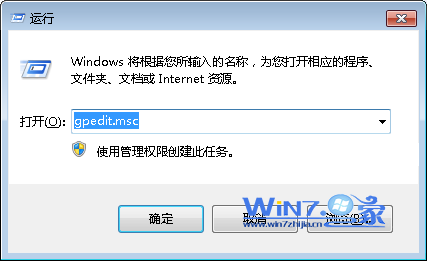
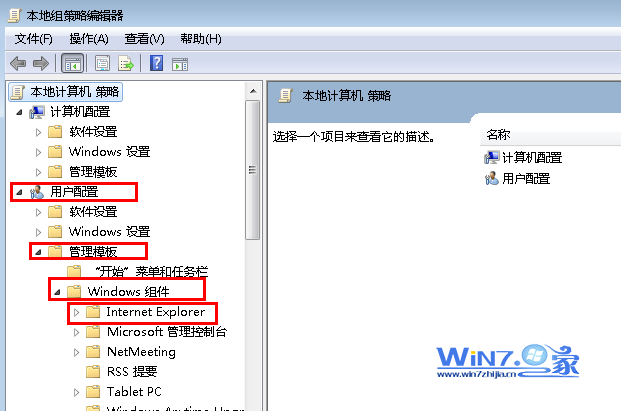
gpedit.msc
regedit
HKEY_CURRENT_USER\Software\Policies\Microsoft\Windows\Explorer
Explorer
DisableSearchBoxSuggestions
1
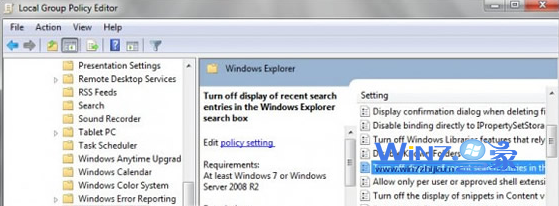
Turn off display of recent search entries in the Windows Explorer
Win7 建立虛擬無線網卡 (HostedNetwork) 分享網路給手機/平板:netsh 指令完整教學
comres.dll 遺失或遭病毒替換?完整修復與查殺指南
Win7 如何設定工作群組?建立區域網路共用協作環境
Win7 資料夾搜尋功能失效?啟用 Windows Search 與 Indexing Service 服務
Windows 7 多語言使用者介面 (MUI):旗艦版專屬功能解析
Win7 修改登錄提升網頁開啟速度(DefaultTTL 優化)
Win7 工作列快捷方式置中顯示教學
筆電電池保養迷思與正確充電習慣:鋰電池無記憶效應、隨用隨充、20%-30% 充電最護電池