問題現象
安裝雙系統(如 Ubuntu)後,開機出現 GRUB 錯誤畫面(grub rescue> 或 error: no such partition),無法直接進入 Windows 7。
方法一:透過 GRUB 指令暫時啟動 Windows(每次開機需輸入)
在 GRUB 提示符下依序輸入以下三行指令(每行按 Enter):
find --set-root /bootmgr
chainloader /bootmgr
boot
即可啟動 Windows 7,但重開機後需重複操作。
方法二:使用 EasyBCD 重寫 MBR 永久修復(推薦)
- 在可進入 Windows 7 的情況下(或用方法一暫時進入),下載並安裝 EasyBCD(免費個人版)。
- 開啟 EasyBCD,切換到 BCD 部署 索引標籤。
- 選擇 MBR 選項:安裝 Windows Vista/7/8/10 的 MBR。
- 按下 寫入 MBR 按鈕,完成後重新開機即可正常進入 Windows 7 開機選單。
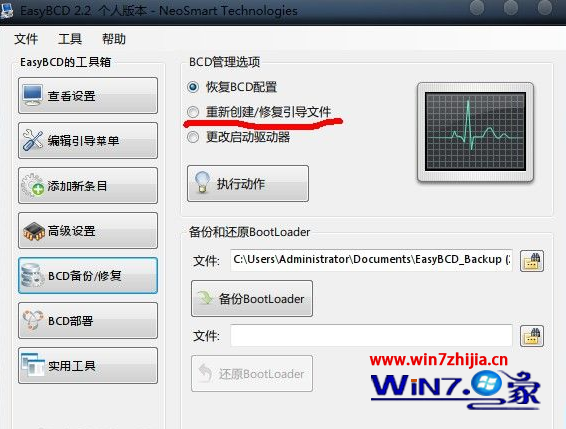 圖 1:EasyBCD 重寫 MBR 操作介面
補充說明
- EasyBCD 亦可用於管理多重開機選單、新增/刪除 Linux 開機項目。
- 若無法進入 Windows 環境,可使用 Windows 7 安裝光碟/USB 進入「修復電腦 → 命令提示字元」,執行
bootrec /fixmbr 與 bootrec /fixboot 修復 MBR 與開機磁區。
- 修復後若原本的 Linux 開機選單消失,可在 Linux 端重新安裝 GRUB 至其專屬分區(而非 MBR),再用 EasyBCD 新增 Linux 開機項目,實現雙系統共存。