Windows XP Windows 7 Windows 2003 Windows Vista Windows 綜合教學 Linux 系統教學
Windows 10 Windows 8 Windows 2008 Windows NT Windows Server 電腦軟體教學

Win7 檔案右鍵沒有「藍牙傳送」選項?建立 fsquirt.exe 捷徑放入 SendTo 資料夾恢復功能

編輯:Windows 7 系統介紹

右鍵檔案找不到「傳送到 → 藍牙裝置」?系統未自動建立捷徑。手動建立 fsquirt.exe(藍牙傳輸精靈)捷徑放入 shell:sendto 資料夾,即可恢復右鍵藍牙傳送功能。

修復步驟

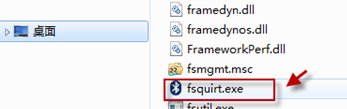
  1. 總管地址列輸入 %windir%\system32 → 找到 fsquirt.exe。
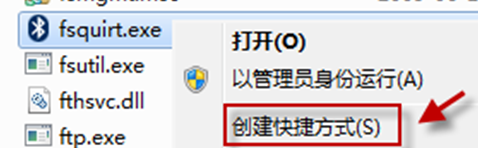
  2. 右鍵 fsquirt.exe → 「建立捷徑」→ 捷徑會出現在桌面。
  3. Win+R → shell:sendto → 開啟「SendTo」資料夾。
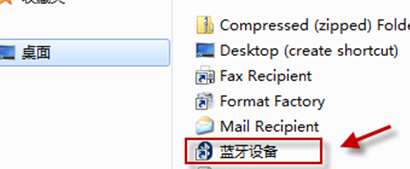
  4. 將桌面的「fsquirt.exe - 捷徑」剪下/複製到此資料夾。
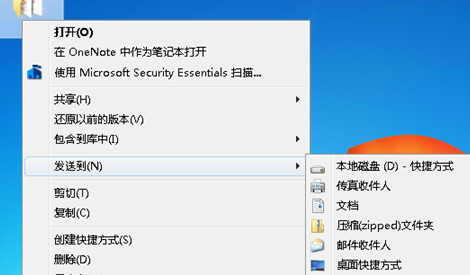
  5. 右鍵任意檔案 → 「傳送到」即可看到「藍牙裝置」選項。

fsquirt.exe 位置

system32 找到 fsquirt.exe

建立捷徑

SendTo 資料夾貼上捷徑

前置條件:電腦需具備藍牙硬體並已安裝驅動、藍牙服務 (Bluetooth Support Service) 正在執行。若無藍牙硬體,此捷徑執行會提示「找不到藍牙裝置」。

Copyright © Windows教程網 All Rights Reserved