Windows 10 桌面捷徑預設疊加小箭頭圖示,許多用戶偏好純淨外觀。透過修改登錄 Shell Icons 將箭頭指向透明圖示資源,配合重建圖示快取,即可完美移除。本文提供可直接複製的 BAT 批次檔,一鍵執行即時生效。
RemoveArrow.txt)。@echo off
reg add "HKEY_LOCAL_MACHINE\SOFTWARE\Microsoft\Windows\CurrentVersion\Explorer\Shell Icons" /v 29 /d "%systemroot%\system32\imageres.dll,197" /t REG_SZ /f
taskkill /f /im explorer.exe
attrib -s -r -h "%userprofile%\AppData\Local\iconcache.db"
del "%userprofile%\AppData\Local\iconcache.db" /f /q
start explorer
pause
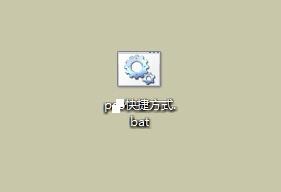
RemoveArrow.bat (副檔名 .bat) → 儲存至桌面。RemoveArrow.bat → 「以系統管理員身分執行」。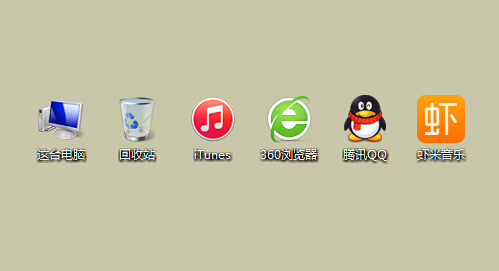
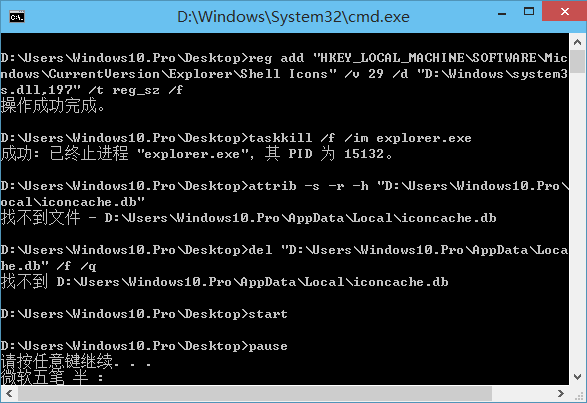
Shell Icons /v 29:索引 29 對應「捷徑疊加圖示」。imageres.dll,197:系統內建透明圖示資源 (空白 16x16)。taskkill /f /im explorer.exe:重啟總管套用登錄變更。del iconcache.db:刪除圖示快取強制重建,避免舊箭頭殘留。@echo off
reg delete "HKEY_LOCAL_MACHINE\SOFTWARE\Microsoft\Windows\CurrentVersion\Explorer\Shell Icons" /v 29 /f
taskkill /f /im explorer.exe
attrib -s -r -h "%userprofile%\AppData\Local\iconcache.db"
del "%userprofile%\AppData\Local\iconcache.db" /f /q
start explorer
pause
另存為 RestoreArrow.bat 以管理員執行即可恢復預設箭頭。
HKLM。Win10 桌面路徑怎麼改?移動桌面資料夾到非系統盤減輕 C 槽壓力、加快開關機速度
Win10 快速切換到桌面兩大招:工作列邊緣按鈕與 Win+D 快速鍵
Win10 桌面背景變黑怎麼辦?一招開啟「顯示 Windows 背景」恢復正常
善用 Win10 錯誤報告尋找解決方案:rundll32 指令一鍵掃描歷史錯誤
Win10 郵件與行事曆同步錯誤 0x80c8043e 解決方案:官方 PowerShell 指令與民間移除更新法
如何將 Win10 ISO 寫入 USB 製作開機安裝碟:UltraISO 八步驟完整教學