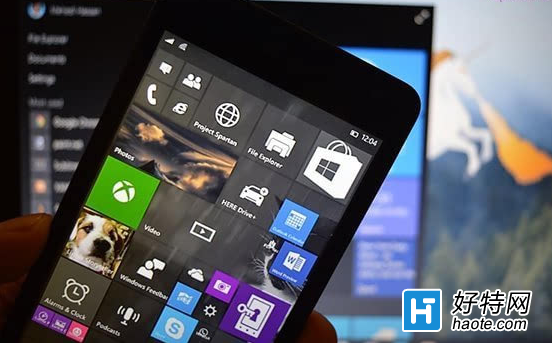
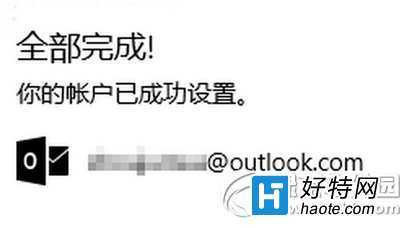
Win10 內建郵件應用支援多種帳戶類型,設定步驟:

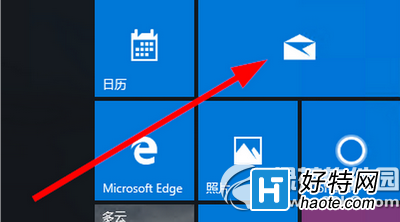
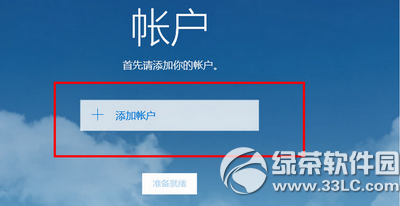
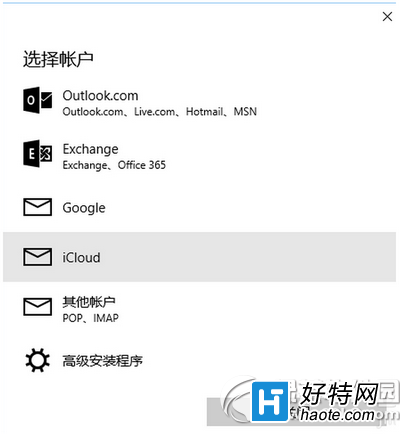
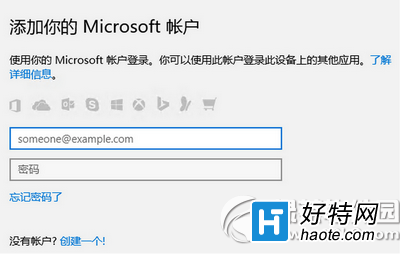
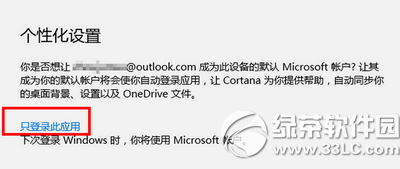
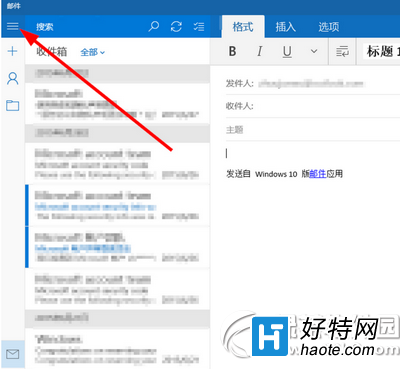
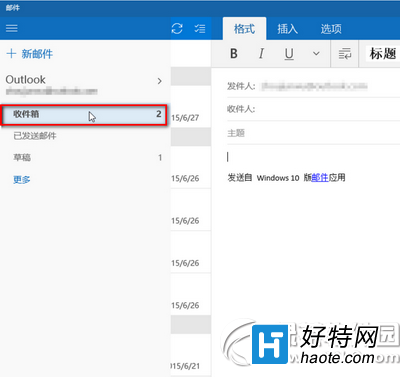
左上選單可:寫新郵件、查看資料夾、郵件設定、行事曆等。若不想同步系統登入,選「僅登入此應用」。
Win10 磁碟清理按鈕消失?啟用回收站功能即可恢復:取消「不將檔案移至回收站」設定
Win10 通知改回 Win7 風格「氣球提示」:登錄修改一鍵完成
Win10 開始選單回應緩慢?移除動態磚 + 關閉小娜線上搜尋 兩招加速
Win10 激活 Office 2013:KMSpico 10.0.5 一鍵激活教學(含備份還原)
Win10 移除內建「電影與電視」App:使用 AppsManager 工具一鍵解除安裝
Win10 命令提示字元在哪?任務管理員 Ctrl+點擊「執行新工作」秒開管理員模式
Win10 升級助手提示「網卡不支援 Windows10」?下載官網最新支援 Win10 的網卡驅動,改用原版鏡像安裝後再裝驅動