Windows 10 預設隱藏系統檔案、隱藏屬性資料夾,防止誤刪。需查看/編輯隱藏檔 (如 .git、AppData、ProgramData) 時,透過檔案總管「檢視」分頁即可一鍵顯示。本文附圖文步驟與進階設定。
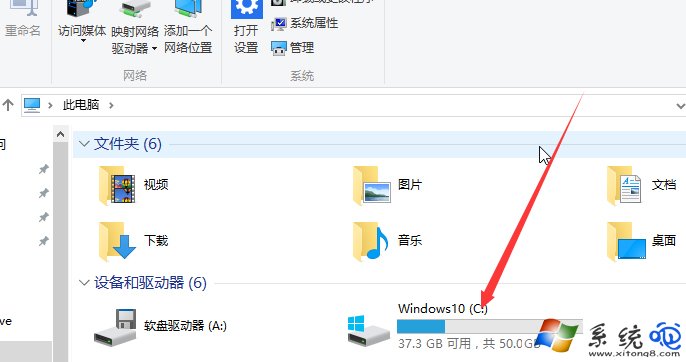
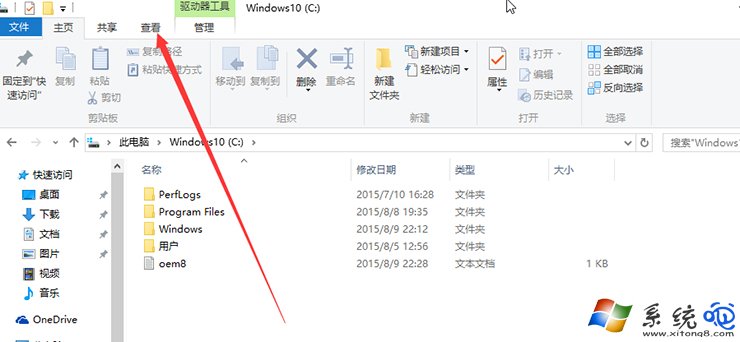
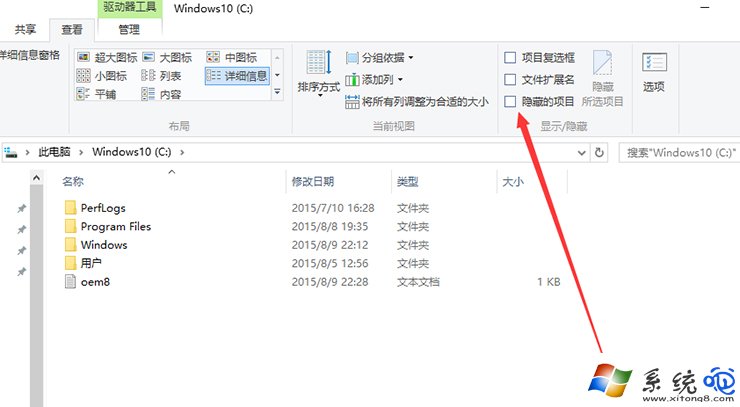
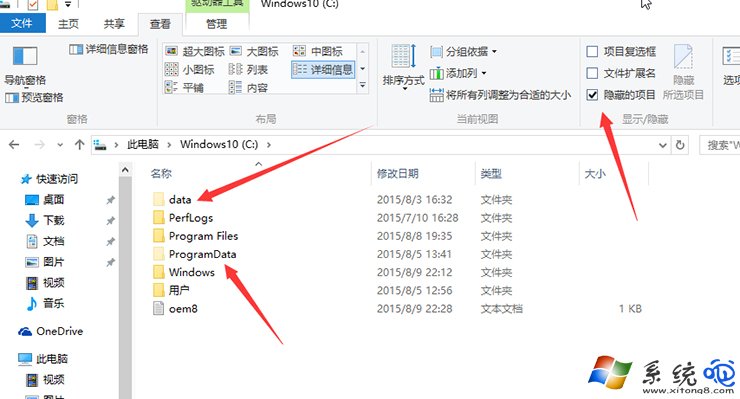
bootmgr、pagefile.sys、hiberfil.sys、System Volume Information 等關鍵系統檔,請勿移動/刪除/重命名。attrib -h -s -r *.* /s /d (遞迴移除隱藏/系統/唯讀屬性,極度危險,僅限特定資料夾使用)。Get-ChildItem -Force -Hidden 或 ls -Force -Hidden。dir /a:h。| 資料夾 | 典型路徑 | 用途 |
|---|---|---|
| AppData (使用者應用資料) | %LocalAppData% / %AppData% |
軟體設定、快取、記錄 |
| ProgramData (所有使用者共用資料) | C:\ProgramData |
共用授權、設定、資料庫 |
| 使用者設定檔 | C:\Users\使用者名稱 |
文件、下載、桌面、NTUSER.DAT |
| 系統備份/還原 | C:\System Volume Information |
還原點、磁碟影本 (需系統權限) |