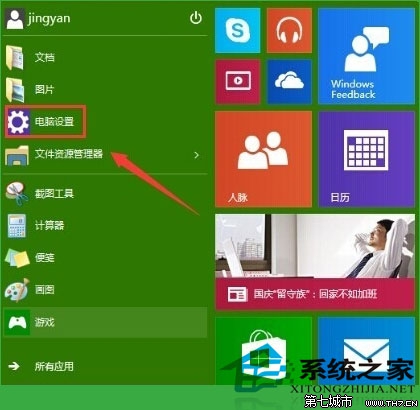
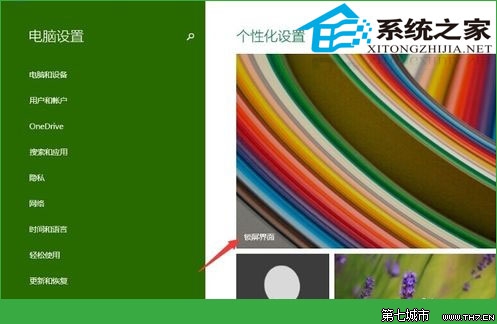
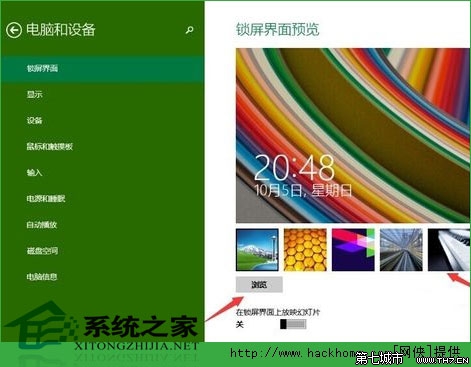
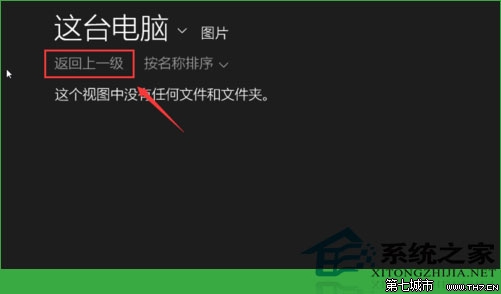
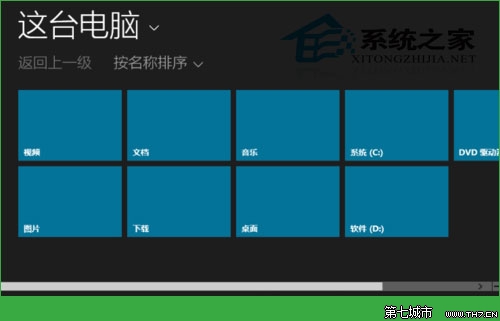
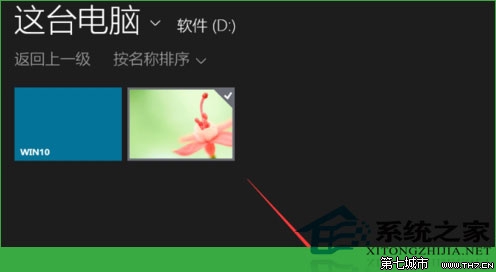
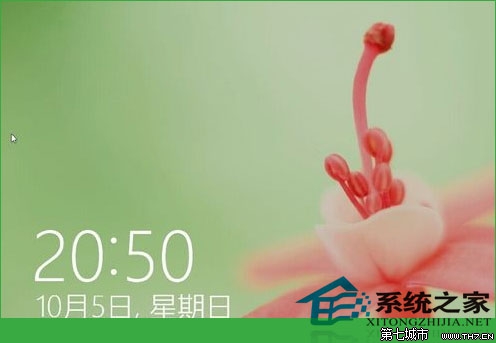
鎖定畫面支援靜態圖片、Windows 聚焦 (自動輪換 Bing 美圖) 與相片播放放映。自訂圖片可展現個人風格。
Win10 顯示副檔名兩大法:檔案總管與資料夾選項快速設定
Windows 10 移動「我的文件」等使用者資料夾至 D 槽釋放 C 槽空間
Win10 紅石版新特性:RadialController 徑向選單與 Ink Toolbar 墨水工具列,強化手寫筆操作體驗
Windows 10 開啟便利貼 (Sticky Notes) 兩大入口:搜尋列與開始選單
Win10 解除安裝應用程式:比 Win7 更直覺的操作路徑
Win10 升級 TH2 失敗錯誤 0xc1900101-0x30018?啟動核心更新服務解決安裝受阻
Win10 使用 DISM 指令查詢可升級目標版本
Windows 10 取消開機密碼/設定自動登入教學:保留安全性的便利之道