軟媒魔方 (Rubik's Cube) 內建「硬碟裝機」功能,可在現有 Windows 環境下,僅需 Windows 10 ISO 映像檔,無需 USB、無需燒錄、無需進入 PE,極速部署 Windows 10 (約 30 秒進入安裝階段)。
前置需求
- Windows 10 ISO 映像檔。
- 目標安裝分區 (非系統碟) 餘裕空間 > 5 GB (用於暫存解壓檔案)。
- 若做雙系統,需額外一分區存放 ISO。
操作步驟
- 下載安裝最新版軟媒魔方。
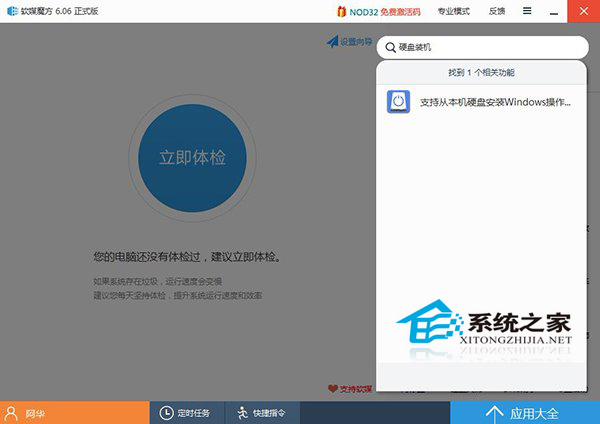
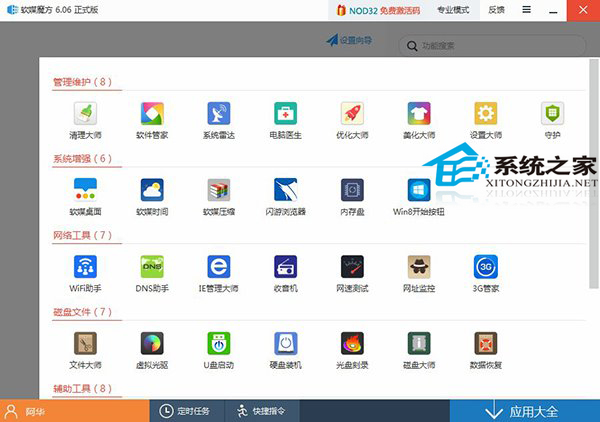
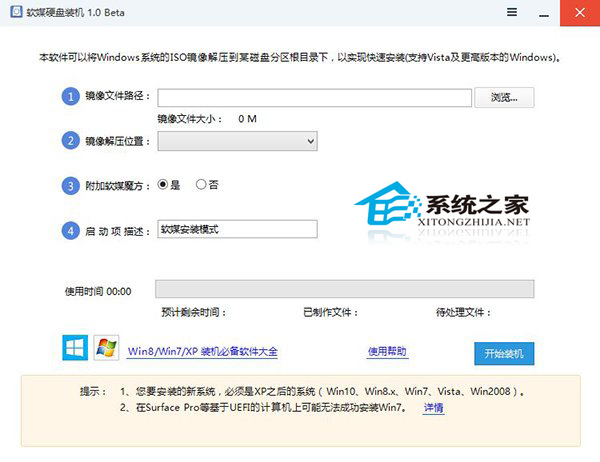
- 主介面搜尋或右下角「應用大全」找到「軟媒硬碟裝機」並啟動。
- 選擇 ISO 映像檔、目標安裝分區、啟動分區 (通常同目標分區)。
- 點選「開始安裝」,工具自動解壓 ISO、配置 BCD、重新開機進入 Windows 10 安裝程式 (OOBE 階段)。
優點:免 USB、免 PE、免燒錄、極速、支援熱備份還原。缺點:需現有 Windows 環境啟動,裸機仍需 USB/PE。適合已有系統欲快速測試/安裝 Windows 10 的用戶。