Windows 10 更新或 Microsoft Store 出現錯誤 0x800706D9,主因是「Internet Connection Sharing (ICS)」與「Windows Firewall」服務被停用。
修復步驟(服務管理員)
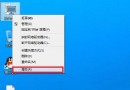
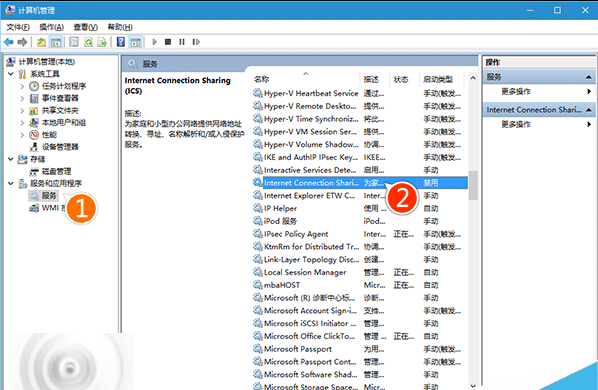
- 右鍵「開始」→「電腦管理」→ 左側「服務與應用程式」→「服務」。
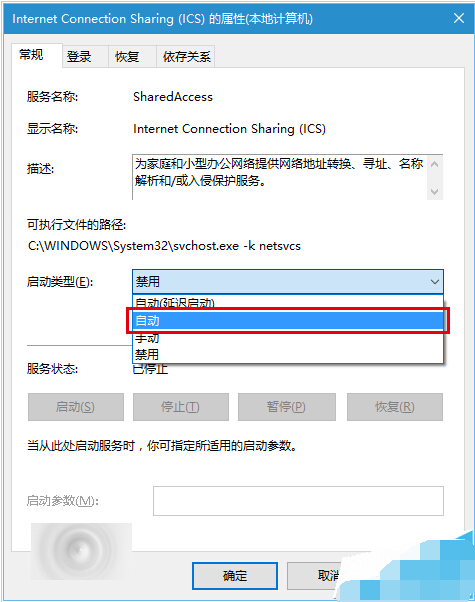
- 找到 Internet Connection Sharing → 雙擊 → 「啟動類型」改「自動」 → 「啟動」 → 「確定」。
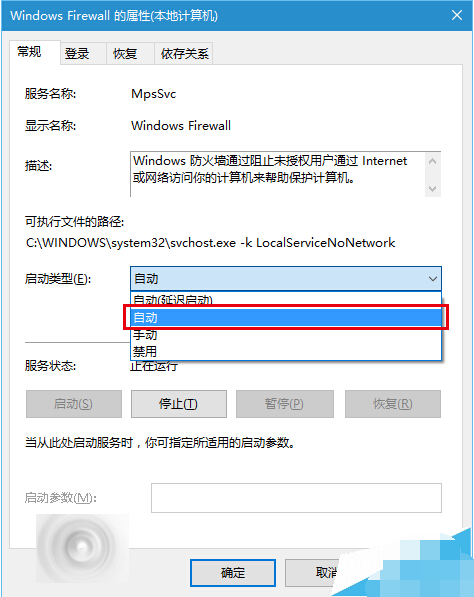
- 找到 Windows Firewall → 同樣設為「自動」並啟動。
- 重新嘗試更新/開啟 Store。
替代指令法(services.msc)
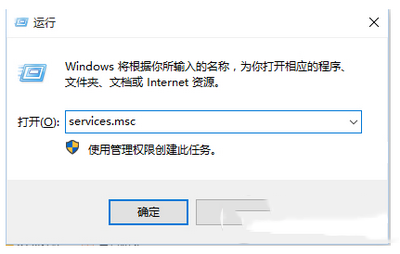
- Win+R →
services.msc。
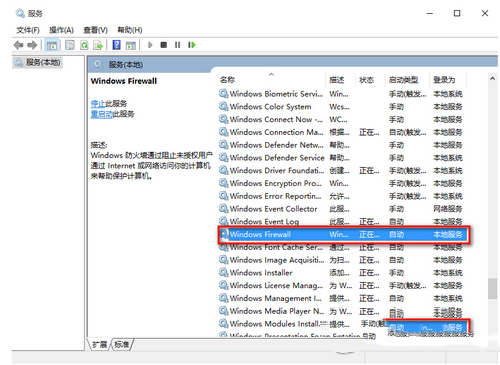
- 確認上述兩服務均為「執行中」且「啟動類型:自動」。
- 若非,右鍵「啟動」並設定為「自動」。
若上述無效,可能為第三方安全軟體衝突,嘗試暫時解除安裝防毒軟體或重裝 Store 應用程式。