Windows 10 升級完成後,C 槽殘留大量升級暫存檔與舊系統備份 (Windows.old),佔用 10–30 GB 空間。使用內建「磁碟清理」工具可安全移除,但刪除後無法回滾至舊系統。
🧹 操作步驟
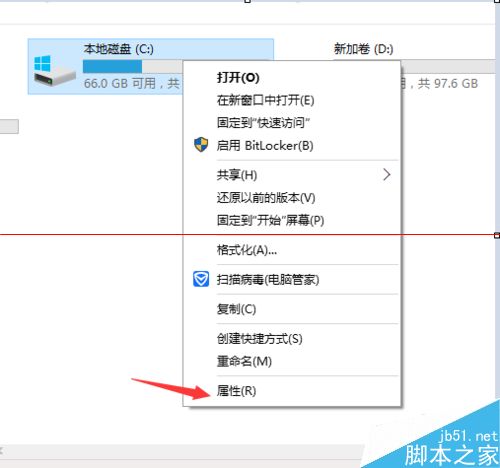
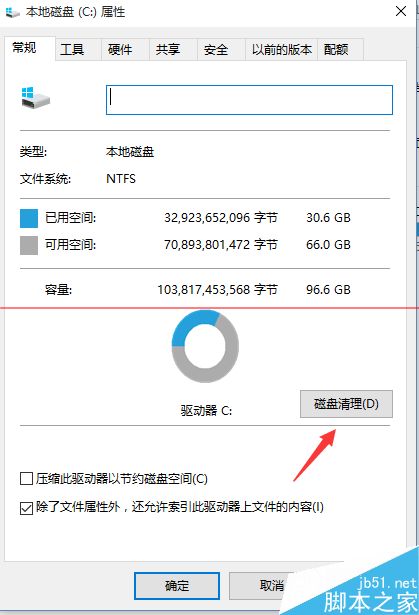
- 檔案總管 → 右鍵 C: → 「內容」→ 「磁碟清理」。
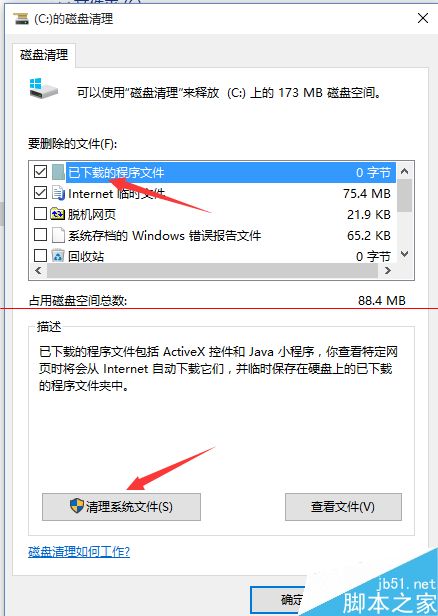
- 掃描完成 → 點擊「清理系統檔案」→ 重新掃描 (需管理員權限)。
- 勾選以下項目 (視需求):
☑ 以前的 Windows 安裝 (Windows.old,最大空間佔用者)
☑ Windows 升級記錄檔
☑ 裝置驅動程式套件 (舊驅動備份)
☑ 臨時檔案、縮圖、錯誤報告等基礎項目
- 確定 → 「刪除檔案」→ 等待完成。
⚠️ 關鍵警告
❌ 刪除「以前的 Windows 安裝」後:
• 無法透過「設定→復原」回滾至 Win7/Win8.1
• Windows.old 資料夾永久刪除,不可復原
• 請確認 穩定使用 Win10 超過 30 天且無回滾需求 再執行
💡 替代方案:手動刪除特定資料夾 (進階用戶)
- 以管理員身分執行 CMD:
takeown /f "C:\Windows.old" /r /d y
icacls "C:\Windows.old" /grant administrators:F /t
rmdir /s /q "C:\Windows.old"
- 同樣不可逆,謹慎操作。