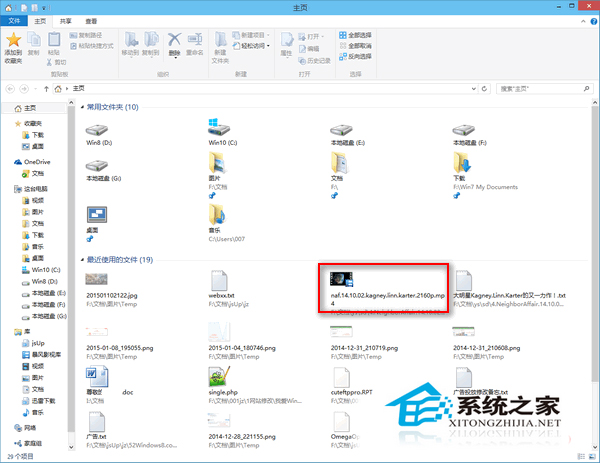
Windows 10 檔案總管「首頁」顯示「常用資料夾」與「最近使用的檔案」,雖方便快速存取,但可能洩露隱私。手動逐一清除繁瑣,且清除後功能失效。透過單一命令可將首頁重設為初始狀態,保留功能同時清除歷程。
del %appdata%\Microsoft\Windows\Recent\AutomaticDestinations\*.automaticDestinations-ms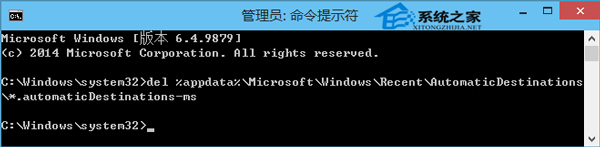
AutomaticDestinations 資料夾儲存 Jump List (跳躍清單) 資料,包含各應用程式的最近使用檔案與常用資料夾記錄。刪除所有 .automaticDestinations-ms 檔案即清除所有歷程,Explorer 重啟後會重新建立空白資料庫。
下班/離開電腦前執行此命令 (可建立 .bat 腳本置於桌面),養成定期清除隱私記錄習慣,兼顧便利與安全。
Win10 預覽版提示「內部版本即將過期」:請升級新預覽版或改裝正式版
Windows 10 查看已啟用產品金鑰 (序號) 兩大神器教學:AIDA64 與 軟媒魔方
Win10 IP 位址衝突怎麼辦?重開路由器或手動設定靜態 IP 解決
Windows 10 預覽版可直接免費升級正式版 無需驗證正版授權 (Insider 福利)
Windows 10 移除捷徑小箭頭三大法:註冊表、IE 拖曳、第三方工具 (軟媒魔方)
Win10 IE 瀏覽器無法上網?重置 IE 設定 + Netsh Winsock/Firewall 重置網路堆疊修復