Windows 10 首次執行未簽名/網路存取程式時會彈出「Windows 安全性警示」對話框,詢問是否允許通過防火牆。若不想每次手動點選,可透過停用「SecurityCenter」服務徹底關閉安全性警示,或關閉 Windows 防火牆(前提是已安裝第三方防火牆/安全套裝軟體)。
方法一:停用 SecurityCenter 服務(針對性關閉警示)
- Win + R →
services.msc → Enter。
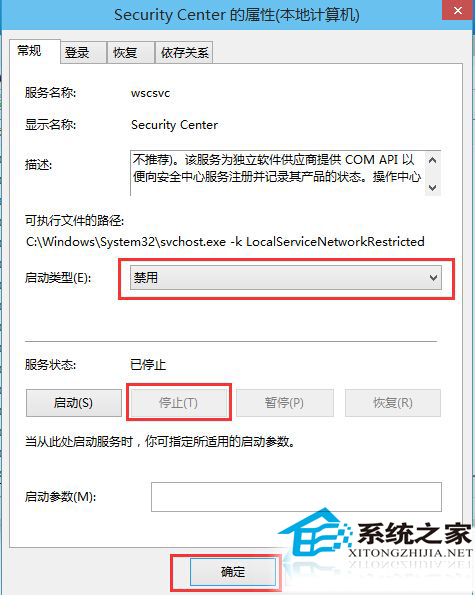
- 找到 SecurityCenter(安全中心)服務 → 雙擊。
- 「啟動類型」改為「停用」 → 「停止」服務 → 「確定」。
方法二:關閉 Windows 防火牆(徹底但需替補)
- 控制台 → 「系統與安全性」→「Windows Defender 防火牆」→「開啟或關閉 Windows Defender 防火牆」。
- 「私人網路設定」與「公用網路設定」均選「關閉 Windows Defender 防火牆(不建議)」→ 「確定」。
- 前提: 已安裝並啟用第三方防火牆(如 360、卡巴斯基、Comodo 等),否則裝置暴露於網路攻擊風險。
SecurityCenter 服務功能說明
監控並報告:防火牆狀態、防毒軟體狀態、反間諜軟體、Windows Update、UAC、Internet 設定。向動作中心提供系統匣警示與圖形化健康視圖。支援 NAP(網路存取保護)向原則伺服器報告客戶端健康狀態。提供 COM API 供第三方安全廠商註冊產品狀態。
風險提示
- 停用 SecurityCenter 會導致動作中心不再顯示安全狀態摘要(防火牆關閉、防毒過期等)。
- 關閉防火牆且無第三方替補 = 裸奔上網,極度危險。
- 企業環境通常透過群組原則強制啟用防火牆與 SecurityCenter,無法手動關閉。