Windows XP Windows 7 Windows 2003 Windows Vista Windows 綜合教學 Linux 系統教學
Windows 10 Windows 8 Windows 2008 Windows NT Windows Server 電腦軟體教學

Win10 解除登錄編輯器鎖定教學

編輯:Windows 10 系統介紹

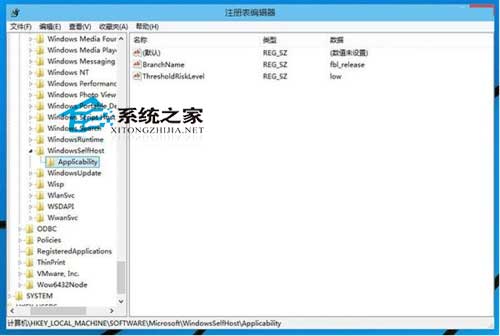
若發現執行 regedit 提示「登錄編輯器已被系統管理員停用」,表示群組原則鎖定了登錄編輯器。透過本機群組原則編輯器即可解除限制(需專業版/企業版/教育版)。
解除步驟

  1. 按 Win+R 輸入 gpedit.msc 開啟「本機群組原則編輯器」。
  2. 依序展開:
    使用者設定 → 系統管理範本 → 系統。
  3. 在右側清單找到「防止存取登錄編輯工具」,雙擊開啟。
  4. 選擇「未設定」或「已停用」→ 點擊「確定」。

家庭版替代方案

家庭版無 gpedit.msc,可透過登錄直接修改(若登錄尚可存取):

  1. 開啟登錄編輯器,瀏覽至:
    HKEY_CURRENT_USER\Software\Microsoft\Windows\CurrentVersion\Policies\System
  2. 找到 DisableRegistryTools 值,將資料改為 0 或刪除該值。

補充說明

  • 若登錄也被鎖定,需使用離線登錄編輯工具(如 PE 環境下的 RegEdit)或重新安裝系統。
  • 若登錄被惡意軟體修改,請參考「Windows 10 登錄被修改如何還原」教學。
Copyright © Windows教程網 All Rights Reserved