Windows 10 更新下載失敗、卡 0%、速度極慢,常因本地 ISP DNS 解析微軟 CDN 節點不佳導致。將網路介面卡 DNS 手動指定為微軟官方推薦的公共 DNS(4.2.2.1 / 4.2.2.2),可大幅改善更新下載成功率與速度。
操作步驟
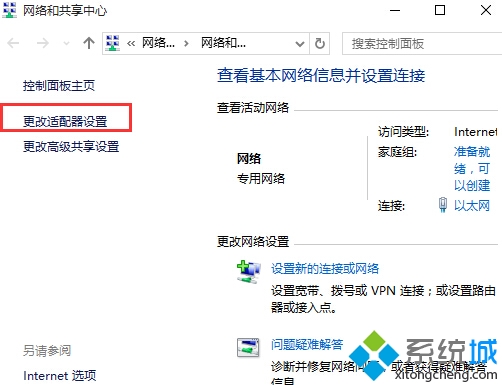
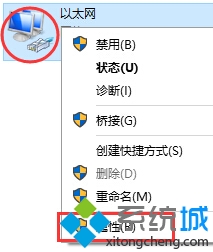
- 右鍵任務列右下角網路圖示 → 「開啟網路和網際網路設定」→「進階網路設定」→「更多網路介面卡選項」(或控制台 → 網路和共用中心 → 變更介面卡設定)。
- 右鍵正在使用的介面卡(乙太網路 / Wi-Fi) → 「內容」。
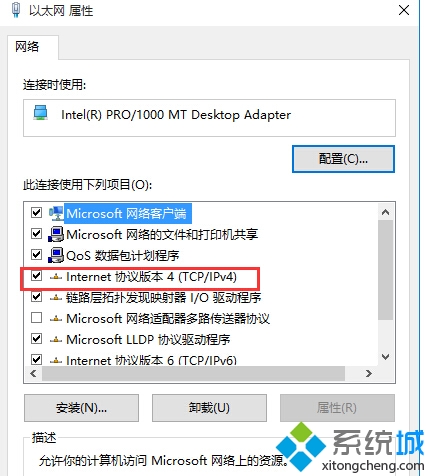
- 雙擊「網際網路通訊協定第 4 版 (TCP/IPv4)」。
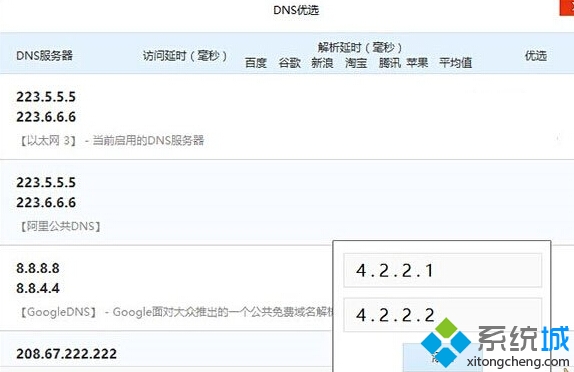
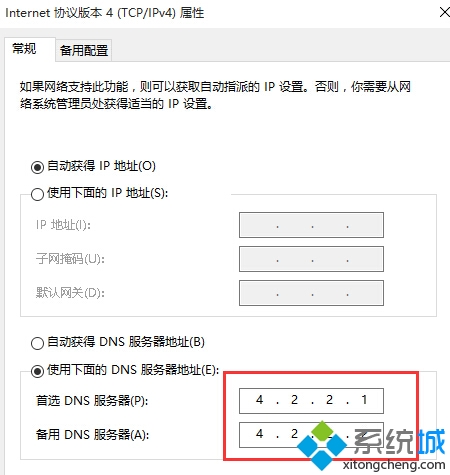
- 選擇「使用下列 DNS 伺服器位址」:
慣用 DNS 伺服器: 4.2.2.1
替代 DNS 伺服器: 4.2.2.2
- 按「確定」套用,重新啟動電腦或重置網路(
ipconfig /flushdns)生效。

原理與效果
- 4.2.2.1/4.2.2.2 為 Level 3 Communications(現 Lumen)運營的公共 DNS,微軟官方文件明確推薦用於 Windows Update。
- 繞過本地 ISP 可能的 DNS 污染、快取過舊、路由不優等問題,直達微軟 CDN 最佳節點。
- 實測:更新檢查速度提升 2-5 倍,下載中斷率顯著降低。
替代方案
若上述 DNS 在特定地區不穩定,可嘗試:
• Google DNS:8.8.8.8 / 8.8.4.4
• Cloudflare DNS:1.1.1.1 / 1.0.0.1
• OpenDNS:208.67.222.222 / 208.67.220.220