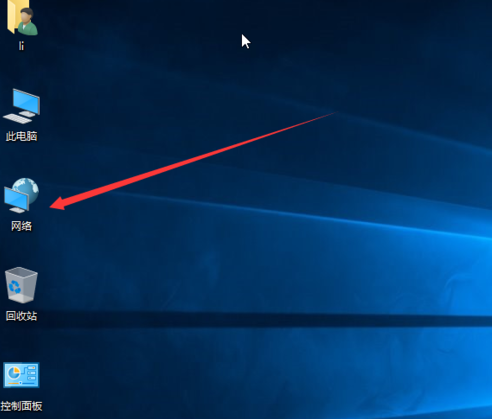
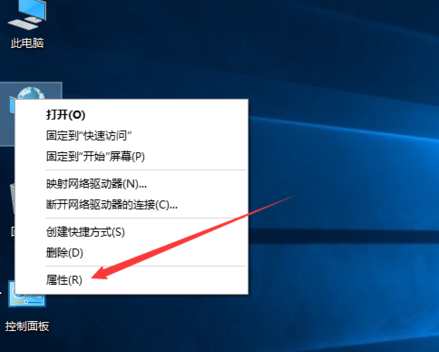
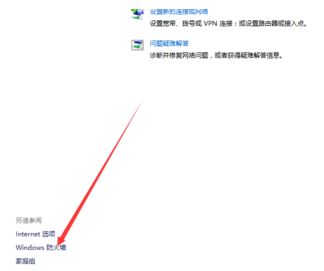
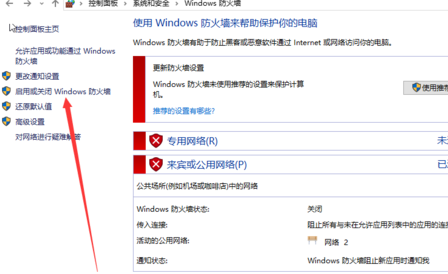
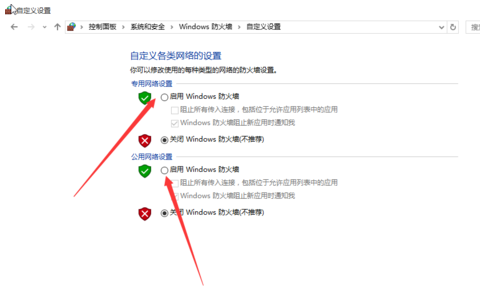
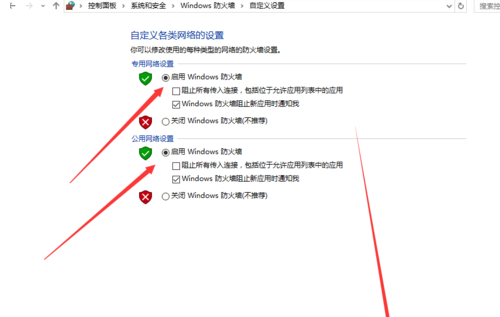
Windows 10 內建防火牆預設啟用,若被第三方安全軟體關閉或手動停用,可透過網路連線介面快速重新啟用。
「啟用或關閉 Windows 防火牆」視窗中可勾選「阻擋所有傳入連線,包含在允許的應用程式清單中」以獲得最高防護等級(不建議一般使用者啟用,可能導致檔案共享、遠端桌面失效)。
wf.msc
Win10 開啟記憶體鎖定頁面 (Lock Pages in Memory) 設定
Win10 應用商店打不開?PowerShell 重新註冊 AppX、wsreset 重置快取、Proxy 檢查四步驟修復指南
Win10 將回收站釘選至「快速存取」的巧妙方法
刪除 Windows 系統更新安裝包釋放 C 槽空間兩種方法
Win10 斯巴達瀏覽器關閉 Adobe Flash Player 方法
Windows 10 任務列圖標透明化設定教學:登錄修改法(含復原步驟)
Windows 10 升級卡住/死機?緊急重新開機安全解套
WinXP 防火牆關閉兩種方法 (謹慎操作)