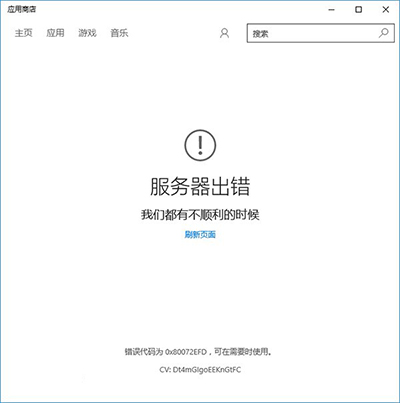
Microsoft Store 點擊無反應、閃退、報錯 0x80072EFD,核心修復手段為 PowerShell 重新註冊套件資訊清單、重置快取、檢查網路 Proxy 設定。
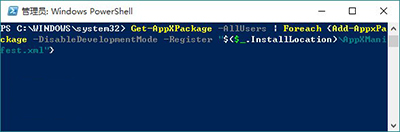
$manifest = (Get-AppxPackage Microsoft.WindowsStore).InstallLocation + '\AppxManifest.xml'; Add-AppxPackage -DisableDevelopmentMode -Register $manifestGet-AppxPackage -AllUsers | Foreach {Add-AppxPackage -DisableDevelopmentMode -Register "$($_.InstallLocation)\AppXManifest.xml"}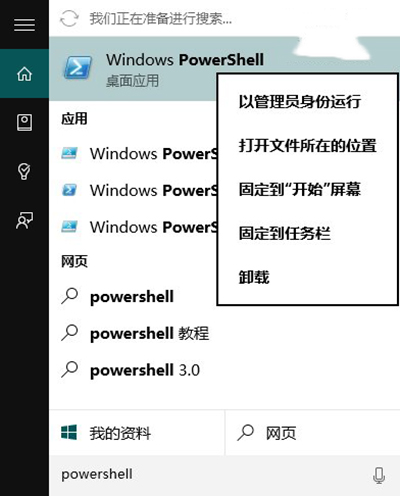
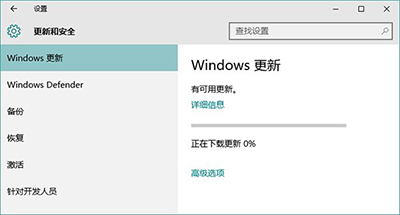
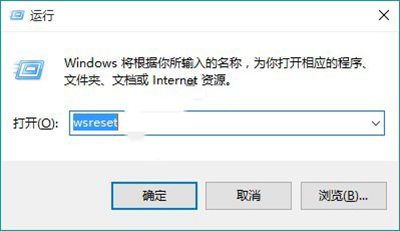
wsreset 回車。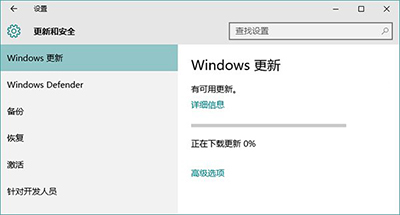
setup.exe 選「保留個人檔案和應用」。PowerShell 重註冊 + 更新依賴元件 + wsreset + Proxy 排查,四維修復覆蓋 99% Store 啟動異常場景。
Win10 9926 設定對話框顯示時間太短?控制台 → 簡易存取中心 → 專注工作 → 調整通知對話框保留時間
Windows 10 雙軌更新機制解析:Opt-in 快速通道與 Lock-down 穩定通道詳細對比
Win10 停用 App 背景執行:設定→隱私權→背景應用程式→關閉不需背景執行的 App
Win10 快速定位滑鼠指標位置:按 Ctrl 鍵顯示縮小圓圈不再找不到游標
騰訊 Win10 升級助手被指流氓軟體?強制安裝管家、懸浮窗難關、開機自啟、驅動程式殘留,官方回應與解決方案
Windows 10 正式版零售價格曝光:台灣地區家庭版約 NT$3,100、專業版約 NT$4,300