Windows XP Windows 7 Windows 2003 Windows Vista Windows 綜合教學 Linux 系統教學
Windows 10 Windows 8 Windows 2008 Windows NT Windows Server 電腦軟體教學

Win10 IE 無法使用?重置 Winsock、清除 Proxy、新建管理員帳號三大解法

編輯:Windows 10 系統介紹

Windows 10 IE 瀏覽器無法開啟網頁、當機或閃退,官方提供三階段排除方案:

方案一:重置 Winsock 目錄(修復網路通訊協定堆疊)

  1. Win+X →「命令提示字元 (系統管理員)」。
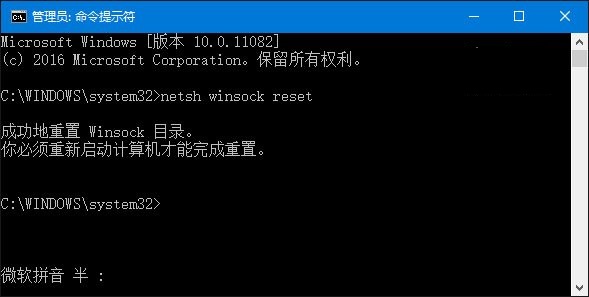
  2. 執行 netsh winsock reset → 重新開機。

IE 無法使用錯誤畫面 CMD 執行 netsh winsock reset

方案二:清除 Proxy 設定並重置 WinHTTP Proxy

  1. IE → 齒輪 →「網際網路選項」→「連線」→「區域網路設定」→ 取消所有勾選。
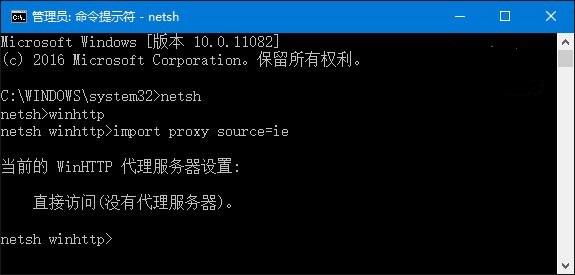
  2. 管理員 CMD 依序執行:
    netsh → winhttp → import proxy source=ie
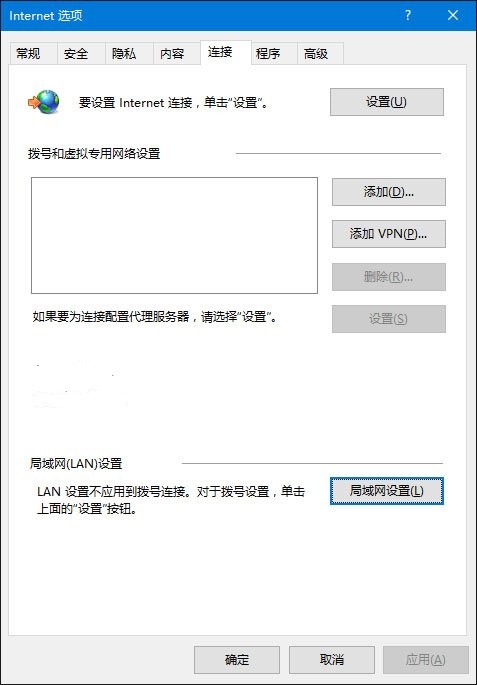
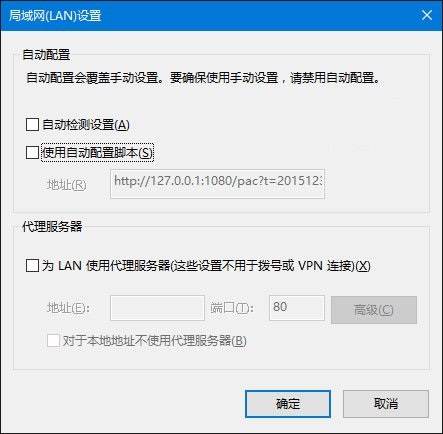
網際網路選項連線索引標籤 區域網路設定取消勾選 CMD 重置 WinHTTP Proxy

方案三:建立新本機管理員帳號測試

  1. 管理員 PowerShell 執行:
    $user = "splitpersonality"
    net user /add $user
    net localgroup Administrators /add $user
  2. 登入新帳號測試 IE 是否正常。

若以上無效,建議改用 Edge/Chrome/Firefox 現代瀏覽器,IE 已停止功能更新。

Copyright © Windows教程網 All Rights Reserved