Windows 10 Microsoft Store 下載應用後安裝階段卡住、報錯「安裝失敗」、「出錯了,請稍後再試」,多數為 Store 快取損毀。執行 wsreset.exe 重置快取即可修復 90% 以上案例。
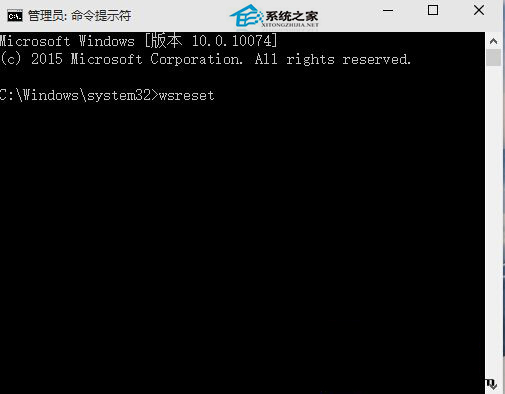
wsreset.exe → 按 Enter (或右鍵開始按鈕 → 「執行」→ 輸入)。Get-AppxPackage Microsoft.WindowsStore | Foreach {Add-AppxPackage -DisableDevelopmentMode -Register "$($_.InstallLocation)\AppXManifest.xml"}*.dl.delivery.mp.microsoft.com, *.storeedgefd.dsx.mp.microsoft.com 可達,關閉 SSL 檢測代理。| 錯誤碼 | 可能原因 |
|---|---|
| 0x80070005 | 權限不足 (防毒/權限鎖定) |
| 0x80073CF9 | 套件衝突/損毀 (需重新註冊) |
| 0x80072EE2 | 網路逾時/代理阻擋 |
| 0x80072EFD | 無法連線伺服器 (DNS/防火牆) |
| 0x8024001E | 更新服務異常 (重啟 wuauserv) |
習慣遇到 Store 問題先跑 wsreset.exe,簡單高效,屬「萬金油」級修復指令。