Windows 10 預設會延遲啟動應用程式以確保桌面優先顯示,導致體感開機較慢。透過登錄檔將 StartupDelayInMSec 設為 0 可移除此延遲,明顯縮短進入桌面後可用時間。
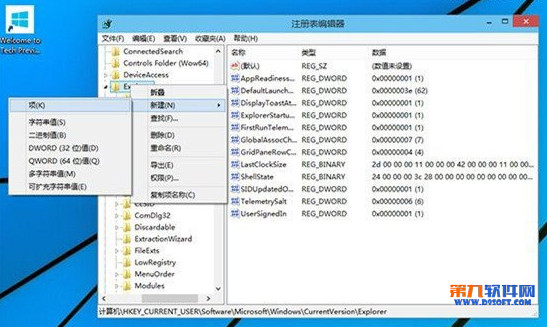
regedit → Enter。HKEY_CURRENT_USER\Software\Microsoft\Windows\CurrentVersion\Explorer\SerializeSerialize 鍵值不存在,在 Explorer 右鍵 → 新增 → 鍵值 → 命名 Serialize。Serialize 右側空白處右鍵 → 新增 → DWORD (32 位元) 值 → 命名 StartupDelayInMSec。0(十六進位/十進位皆可)。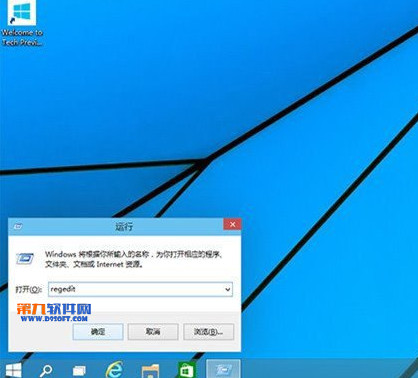
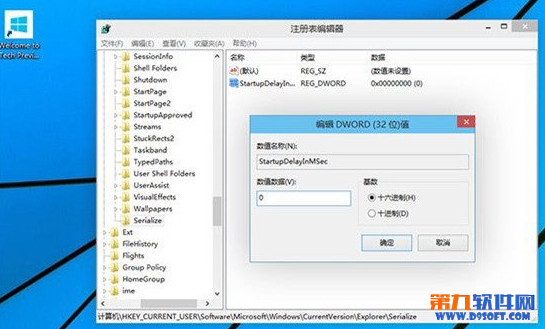
效果驗證:開機進入桌面後,啟動項應用圖示幾乎同步出現,無明顯波次延遲。若遇相容性問題(極少數舊版驅動),將值改回 1 或刪除該鍵值即可恢復預設。
Win10 IE 瀏覽器無法使用?同 ID 22397 三大解法:重置 Winsock、清 Proxy、新帳號
Win10 9926 無法存取路由器掛載硬碟?登錄新增 AllowInsecureGuestAuth=1 開啟不安全來賓存取
Windows 10 IE 瀏覽器將預設搜尋引擎改為百度:管理附加元件新增搜尋提供者完整步驟
Win10 徹底關閉 Internet Explorer 11:透過「開啟或關閉 Windows 功能」移除
Win10 更新失敗 0x80246019?登錄表修改分支名稱與風險等級修復
Win10 內建「郵件」App 新增帳號完整教學:Outlook、Gmail、自訂 IMAP/POP 全支援
Win10 Build 10147 畫廊大量洩露:Edge 品牌正式啟用、平板模式新導航、深色主題普及、動作中心新增靜音時段