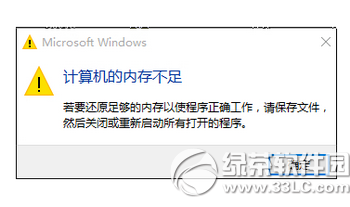
Win10 升級 (含早期 9226 版、正式版) 出現 0x80240020 錯誤,主因為 Windows Update 元件損壞或軟體衝突。標準重設流程可解決 90% 此類錯誤。
net stop wuauserv
ren C:\Windows\SoftwareDistribution SoftwareDistribution.old
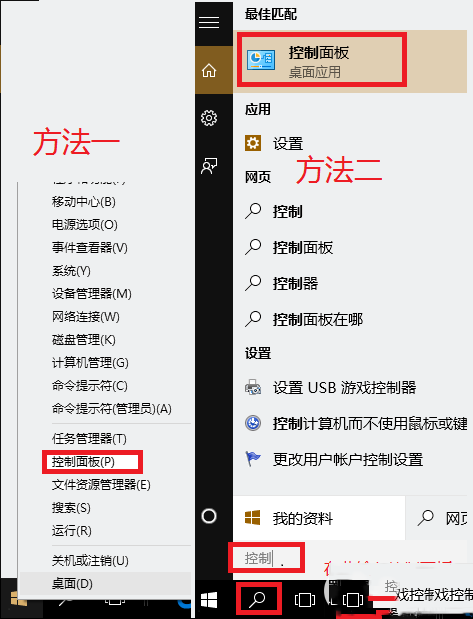
net start wuauservnet stop wuauserv:停止 Windows Update 服務,釋放資料夾鎖定。ren SoftwareDistribution SoftwareDistribution.old:重命名更新快取資料夾,強制系統建立全新乾淨快取 (舊快取保留為 .old 供回溯)。net start wuauserv:重啟服務,開始全新下載。
net stop wuauserv
net stop bits
net stop cryptsvc
ren C:\Windows\SoftwareDistribution SoftwareDistribution.old
ren C:\Windows\System32\catroot2 catroot2.old
net start wuauserv
net start bits
net start cryptsvc
此法同步重設 BITS (背景智慧傳輸) 與加密服務快取,解決更深層元件損壞。
若為強制升級指令 (wuauclt.exe /updatenow) 導致缺乏使用者確認互動而報錯,可嘗試:
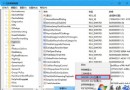
regeditHKEY_LOCAL_MACHINE\SOFTWARE\Microsoft\Windows\CurrentVersion\WindowsUpdate\OSUpgradeAllowOSUpgrade = 1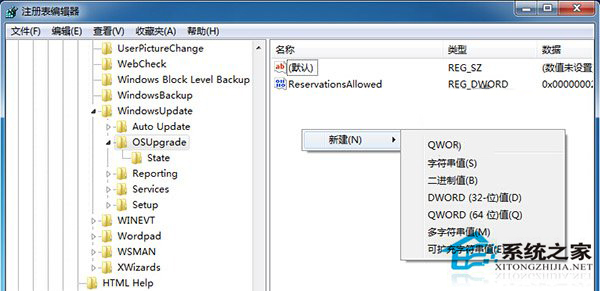
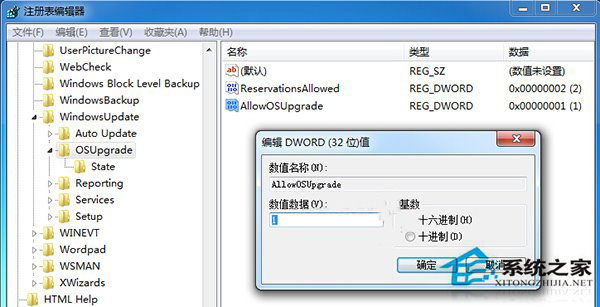
0x80240020 及相關 Windows Update 錯誤通用。0x80240020 核心解法:停止 wuauserv → 重命名 SoftwareDistribution → 重啟 wuauserv → 重新下載。配合註冊表 AllowOSUpgrade=1 解決強制升級缺乏確認互動問題。全新安裝為終極備案。