Windows XP Windows 7 Windows 2003 Windows Vista Windows 綜合教學 Linux 系統教學
Windows 10 Windows 8 Windows 2008 Windows NT Windows Server 電腦軟體教學

Windows XP 無法更新?12 招排除 Windows Update/Microsoft Update 錯誤完整指南

編輯:XP 系統基礎知識

典型案例回顧

使用激進優化工具停用服務後,導致防火牆、安全中心、自動更新全掛。訪問 Windows Update 出現錯誤碼 0x80070422(服務被停用),嘗試啟動服務卻提示相依服務啟動失敗。最終透過重新註冊核心 DLL、修復服務依賴關係解決。

核心修復步驟

  1. 先執行優化工具的「還原」功能(如有)
  2. 2. 重新註冊關鍵 DLL:
    regsvr32 qmgr.dll
    regsvr32 qmgrproxy.dll
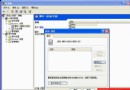
    (qmgrproxy.dll 提示找不到模組可忽略) 3. 服務管理器 (services.msc) 啟用所有相關服務:
    • Automatic Updates (自動更新)
    • Background Intelligent Transfer Service (BITS)
    • Event Log, RPC, Cryptographic Services 等

12 步通用排除流程(依序嘗試)

  1. 必須使用 IE,非 Firefox/Opera/IE Tab
  2. 允許彈出視窗(工具 → 網際網路選項 → 隱私 → 取消「阻擋彈出視窗」或加入例外)
  3. 檢查 %WINDIR%\system32\drivers\etc\hosts 是否被竄改,還原預設
  4. 清除 IE 快取、Cookies、歷史記錄
  5. 確認以系統管理員身分登入,或移除多餘帳號後重開機
  6. 調整 IE ActiveX/腳本安全性設定(或僅對 update.microsoft.com 降低限制)
  7. 重新註冊核心 DLL:
    regsvr32 urlmon.dll / msxml3.dll / jscript.dll / qmgr.dll / qmgrproxy.dll
  8. 修復 SvcHost 服務群組(適用 0x8007043B):
    登錄 HKEY_LOCAL_MACHINE\SOFTWARE\Microsoft\Windows NT\CurrentVersion\SvcHost\netsvcs 加入 BITS、WUAUSERV → 重開機
  9. 刪除 DataStore 內容(適用 0x80070002):
    %windir%\SoftwareDistribution\DataStore 全部刪除(先停用自動更新服務)

  10. 檢查 Proxy 設定、受限網站清單是否包含 Windows Update
  11. 校正系統日期時間
  12. 確認所有相依服務啟動(services.msc 全啟再逐項精簡)
關鍵提醒: 管理員身分登入是解決多數更新錯誤的前提;若環境複雜,建議直接修復安裝或重灌系統更高效。
Copyright © Windows教程網 All Rights Reserved