不想裝第三方清理軟體,又想徹底清除暫存檔、記錄檔、回收站、預讀資料、Cookie 等系統垃圾?一個批次檔 (.bat) 就能搞定。本文提供可直接複製的完整腳本代碼、建立步驟、參數說明與注意事項,讓您在 WinXP/XP/Win7/Win10 通用的乾淨環境中輕鬆維護系統。
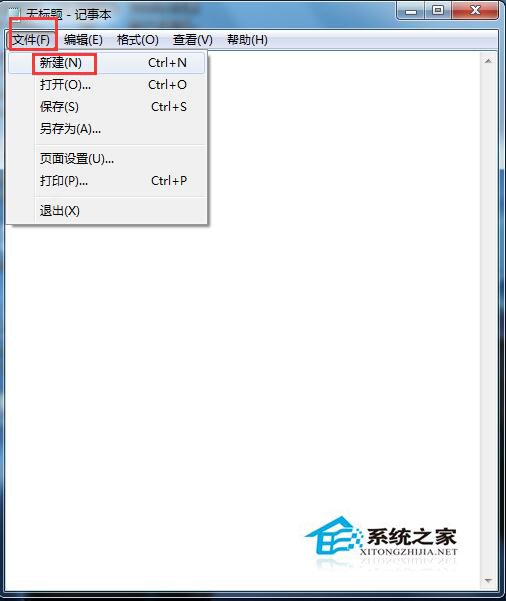
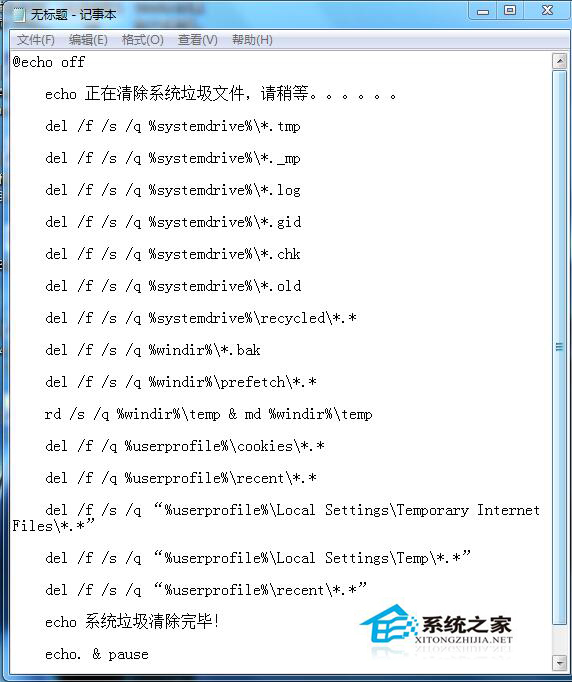
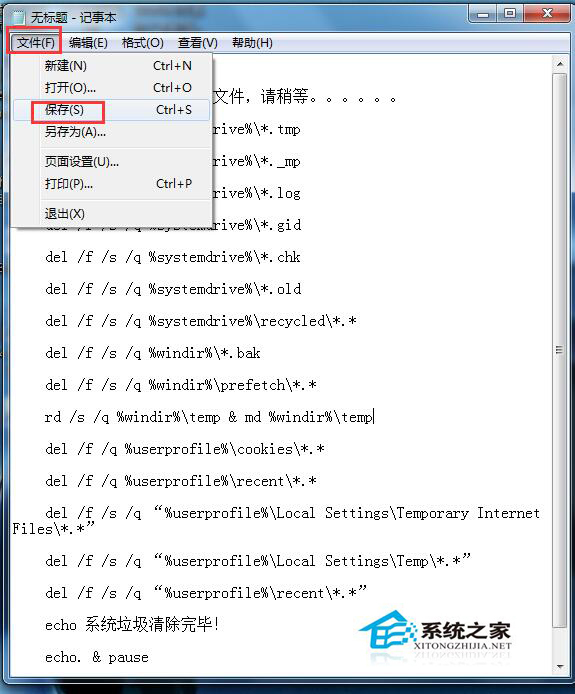
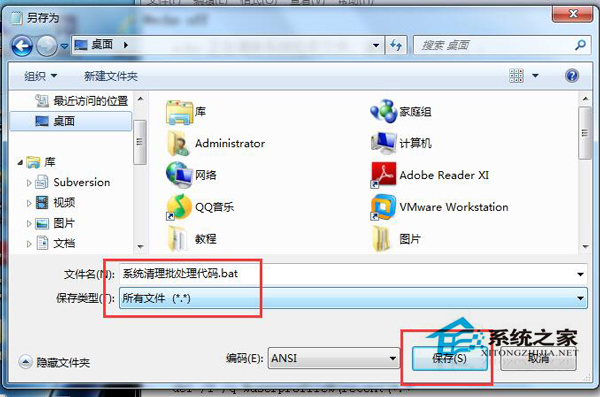
notepad)。系統清理.bat (副檔名必須為 .bat) → 存檔類型選「所有檔案」 → 存放桌面或常用資料夾。@echo off
echo 正在清除系統垃圾檔案,請稍候......
del /f /s /q %systemdrive%\*.tmp
del /f /s /q %systemdrive%\*._mp
del /f /s /q %systemdrive%\*.log
del /f /s /q %systemdrive%\*.gid
del /f /s /q %systemdrive%\*.chk
del /f /s /q %systemdrive%\*.old
del /f /s /q %systemdrive%\recycled\*.*
del /f /s /q %windir%\*.bak
del /f /s /q %windir%\prefetch\*.*
rd /s /q %windir%\temp & md %windir%\temp
del /f /q %userprofile%\cookies\*.*
del /f /q %userprofile%\recent\*.*
del /f /s /q "%userprofile%\Local Settings\Temporary Internet Files\*.*"
del /f /s /q "%userprofile%\Local Settings\Temp\*.*"
del /f /s /q "%userprofile%\recent\*.*"
echo 系統垃圾清除完成!
pause
| 指令 | 清理目標 | 備註 |
|---|---|---|
*.tmp | 系統暫存檔 | 全磁碟遞迴刪除 |
*._mp | 媒體播放暫存 | |
*.log | 記錄檔 | |
*.gid | 說明檔索引 | |
*.chk | 磁碟掃描碎片 | |
*.old | 備份舊檔 | |
recycled\*.* | 回收站 (FAT32) | NTFS 為 RECYCLER,若不想清回收站可刪此行 |
prefetch\*.* | 預讀快取 | 重開機後系統會自動重建 |
temp 目錄重建 | 系統暫存資料夾 | 先刪除再新建,避免權限問題 |
cookies\*.* | Cookie/登入狀態 | 若想保留登入密碼,請刪除此行 |
recent\*.* | 最近使用文件捷徑 | |
Temporary Internet Files | IE 快取/網頁暫存 | |
Local Settings\Temp | 使用者暫存資料夾 |
系統清理.bat 執行,視檔案數量跑幾秒到數分鐘。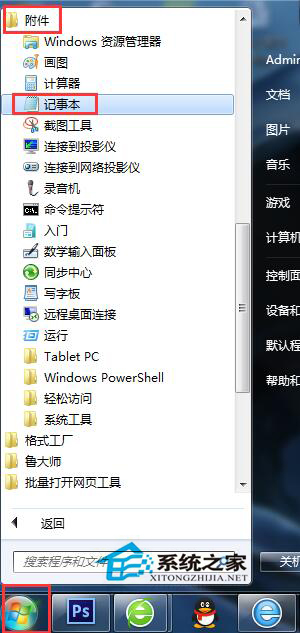
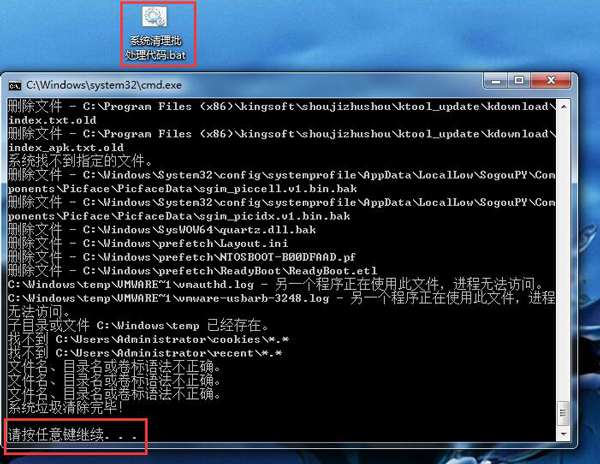
系統清理.bat → 設定每週/每月執行時間 → 輸入帳號密碼確認。一個批次檔,替代付費清理軟體,讓 WinXP 長期保持輕快乾淨。