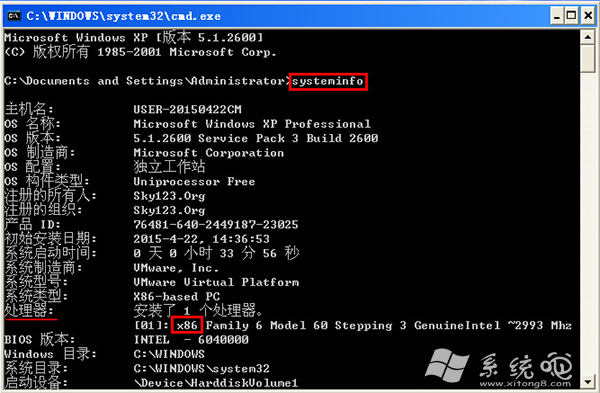
安裝作業系統或軟體前需確認 CPU 支援 32 位元 (x86) 或 64 位元 (x64)。XP 系統下最快方法是使用 systeminfo 指令查看處理器資訊。
操作步驟
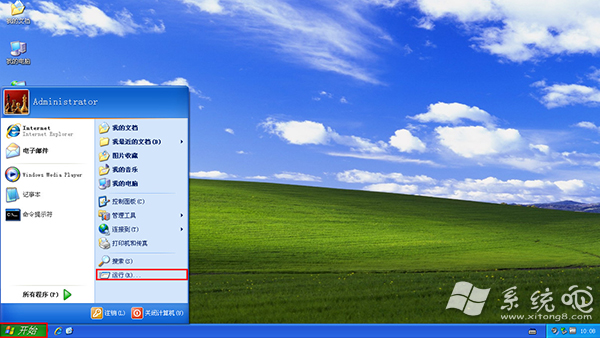
- 按 Win + R → 輸入
cmd → 確定,開啟命令提示字元。
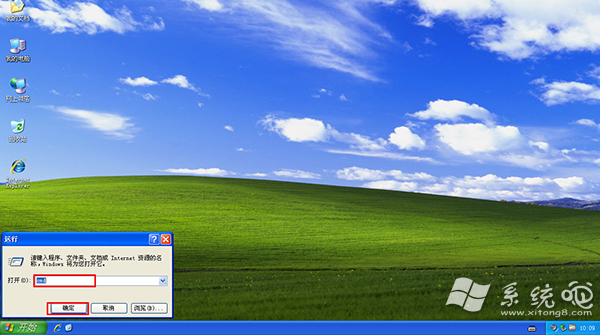
- 輸入
systeminfo → 按 Enter,等待系統蒐集資訊(約 10-30 秒)。
- 在輸出結果中尋找 「處理器」 (Processor) 欄位:
- 顯示 x64、AMD64、Intel64、EM64T → 64 位元 CPU。
- 顯示 x86、IA32、Pentium、Celeron (舊款) → 32 位元 CPU。
其他查看方法
- 我的電腦 → 內容 → 一般:若顯示「x64 Edition」為 64 位元系統(但不代表 CPU 位元數,32 位元 XP 裝在 64 位元 CPU 上仍顯示 32 位元)。
- CPU-Z、Speccy、AIDA64 等第三方工具:
CPU-Z → CPU 索引標籤 → Instructions 欄位含 EM64T 或 x86-64 即為 64 位元。
- Intel/AMD 官網查型號:處理器型號 → 官網規格表確認 Instruction Set 或 64-bit Support。
為何重要?
- 安裝 64 位元 OS (Win7/10 x64):需 64 位元 CPU。
- 執行 64 位元軟體:需 64 位元 OS + 64 位元 CPU。
- 記憶體支援:32 位元 OS 最高識別約 3.2-3.5GB 記憶體,64 位元 OS 支援 128GB+。
使用 systeminfo 即可在幾秒內確認 CPU 位元數,選擇正確版本作業系統與軟體!