無需修改系統檔、無需第三方工具,僅需一張 640×480 16 色 BMP 與 boot.ini 參數,即可安全替換 XP/2003 開機畫面,不滿意隨時復原。
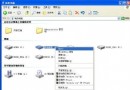
Boot.bmp(檔名、副檔名不可變),放入 C:\Windows\。C:\boot.ini(屬性:隱藏、系統、唯讀,需先取消)。multi(0)disk(0)rdisk(0)partition(1)\WINDOWS="Microsoft Windows XP Professional" /noexecute=optin /fastdetect
/bootlogo /noguiboot,完整範例:multi(0)disk(0)rdisk(0)partition(1)\WINDOWS="Microsoft Windows XP Professional" /noexecute=optin /fastdetect /bootlogo /noguiboot
/bootlogo:啟用自訂 16 色 BMP 開機圖示。/noguiboot:隱藏預設 Windows XP 動態載入條(綠色進度條),純顯示 Boot.bmp。| 現象 | 原因 | 解決 |
|---|---|---|
| 仍顯示預設畫面 | BMP 非 640×480、非 16 色、檔名錯誤、路徑錯誤 | 嚴格遵守規格重製 |
| 畫面花亂/黑屏 | 索引色模式錯誤、色板超過 16 色 | PS「影像→模式→索引顏色」強制 16 色 |
| 開機卡住 | boot.ini 語法錯誤、缺少引號、參數衝突 | 還原備份 boot.ini、或修復模式 bootcfg /rebuild |
若想要動畫/高色彩開機畫面,需使用 BootSkin、TuneUp Utilities 或修補 ntoskrnl.exe/ntkrnlpa.exe 資源區段,風險較高,建議先建立系統還原點/完整備份。