Windows XP Windows 7 Windows 2003 Windows Vista Windows 綜合教學 Linux 系統教學
Windows 10 Windows 8 Windows 2008 Windows NT Windows Server 電腦軟體教學

Vista 設定藍畫面死機自動重新開機

編輯:Windows Vista 教學

修改登錄啟用自動重開機

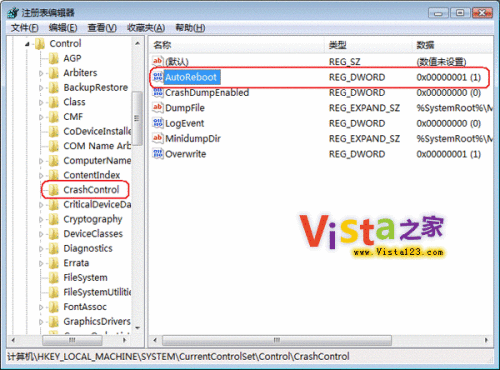
  1. 按 Win+R 開啟「執行」,輸入 regedit 按 Enter 開啟登錄編輯器。
  2. 瀏覽至路徑:
    HKEY_LOCAL_MACHINE\SYSTEM\CurrentControlSet\Control\CrashControl
  3. 在右側窗格找到 AutoReboot (DWORD 值),雙擊修改數值資料為 1(預設可能為 0 或不存在)。
    說明:0 = 不自動重開機(停留在藍畫面),1 = 自動重開機。
  4. 若無此值,右鍵空白處 → 「新增」 → 「DWORD (32 位元) 值」 → 命名為 AutoReboot → 設值為 1。
  5. 關閉登錄編輯器,重新開機生效。

登錄編輯器 CrashControl 設定

進階建議

  • 同目錄下的 CrashDumpEnabled 設為 1(核心記憶體傾印)、DumpFile 設定傾印檔路徑(預設 %SystemRoot%\MEMORY.DMP),方便事後用 WinDbg/BlueScreenView 分析藍畫面原因。
  • 若系統頻繁藍畫面自動重開,導致無法看清錯誤代碼,可暫時將 AutoReboot 改回 0,配合「停用自動重新啟動失敗」開機選項(F8 選單)進行診斷。

Copyright © Windows教程網 All Rights Reserved