Vista 引入 Windows Complete PC 備份(映像備份),支援 NTFS 完整卷備份,但備份檔龐大且還原需安裝光碟。本文探討如何將 WinRE(Windows Recovery Environment)安裝到硬碟,實現無光碟快速還原。
WindowsImageBackup 資料夾,內含完整系統映像。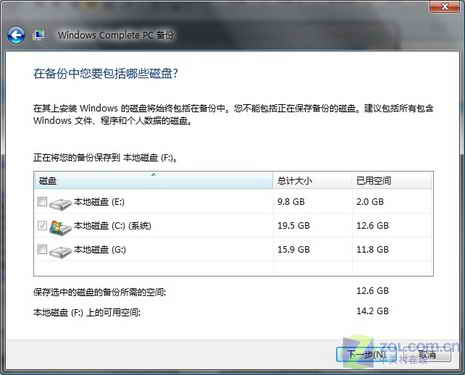
💡 省空間技巧:備份資料夾右鍵→「內容」→「一般」分頁→勾選「壓縮內容以節省磁碟空間」(NTFS 壓縮),備份檔不常讀取,壓縮效益極大。
\boot\boot.sdi 和 \sources\boot.wim
bcdedit /create /d "Windows Recovery Environment" /application OSLOADER
# 記下產生的 GUID,假設為 {guid}
bcdedit /set {guid} device partition=D:
bcdedit /set {guid} osdevice partition=D:
bcdedit /set {guid} path \Windows\System32\winload.exe
bcdedit /set {guid} systemroot \Windows
bcdedit /set {guid} winpe yes
bcdedit /set {guid} detecthal yes
bcdedit /displayorder {guid} /addlast
重新開機後,開機選單會出現「Windows Recovery Environment」,選擇即可進入 WinRE 進行映像還原,無需安裝光碟。
⚠ 注意:上述指令為示意,實際參數請參考 bcdedit /? 並依分區代號調整。建議在虛擬機先測試流程再套用實體機。