Windows XP Windows 7 Windows 2003 Windows Vista Windows 綜合教學 Linux 系統教學
Windows 10 Windows 8 Windows 2008 Windows NT Windows Server 電腦軟體教學

Windows Server 2003 IIS 6.0 啟用 Gzip 壓縮加速網站傳輸

編輯:Windows Server 常見問題解答

啟用 IIS 6.0 Gzip 壓縮可大幅縮減 JS、CSS、HTML 等靜態/動態檔案傳輸量,提升網頁載入速度與 SEO 表現。

三步驟啟用 Gzip

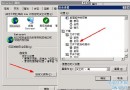
  1. IIS 管理員啟用壓縮:網站屬性 → 服務 → 勾選 壓縮應用程式檔案、壓縮靜態檔案、暫存目錄與最大空間 (建議 500MB-1GB)
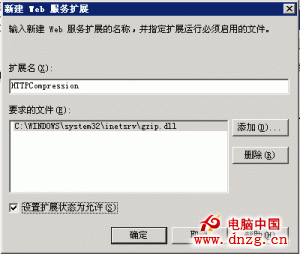
  2. Web 服務擴充新增項目:Web 服務擴充 → 新增擴充 → 檔案指向 C:\Windows\System32\inetsrv\gzip.dll → 允許
  3. 修改 MetaBase.xml 微調壓縮參數 (建議先備份、停止 IIS):
    搜尋 Location ="/LM/W3SVC/Filters/Compression/gzip" 與 deflate
    • 動態壓縮:HcDoDynamicCompression = TRUE、HcScriptFileExtensions 加入 aspx,asp,php
    • 靜態壓縮:HcDoStaticCompression = TRUE、HcDoOnDemandCompression = TRUE、HcFileExtensions 加入 css,js,xml,html
    • 壓縮等級:HcDynamicCompressionLevel、HcOnDemandCompLevel 設為 9 (最高,預設 0 不壓縮)
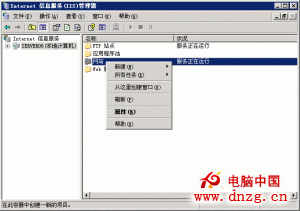
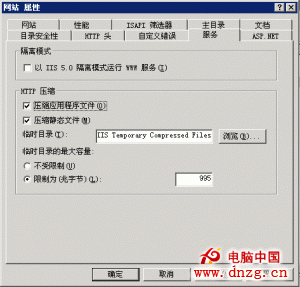
IIS 啟用壓縮 壓縮設定細節 Web 服務擴充新增 MetaBase.xml 參數說明

注意事項

  • 修改 MetaBase.xml 前務必備份,建議停止 IIS 後編輯
  • 圖片檔案 (jpg/png/gif) 已經過壓縮,啟用 Gzip 效益極低,建議排除
  • 動態壓縮會增加 CPU 負載,高流量網站需評估效能影響

正確設定 Gzip 可讓網站傳輸量減少 60-80%,是 IIS 效能優化的首要手段。

Copyright © Windows教程網 All Rights Reserved