嘗試啟動 Windows 服務(如 Windows Firewall)時彈出「錯誤 3:系統找不到指定的路徑」,主因通常是登錄檔中服務的 ImagePath 值與實際可執行檔路徑不符。修正步驟:
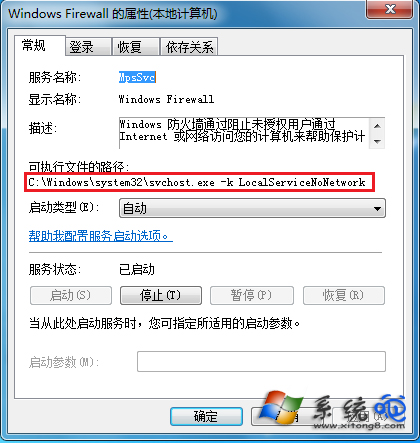
services.msc 開啟服務管理員 → 找到目標服務(以 Windows Firewall / MpsSvc 為例) → 右鍵「內容」 → 記下「執行檔路徑」。regedit → 定位 HKEY_LOCAL_MACHINE\SYSTEM\CurrentControlSet\services\MpsSvc → 檢查 ImagePath 字串值是否與步驟 1 一致(正確應為 %SystemRoot%\system32\svchost.exe -k LocalServiceNoNetwork)。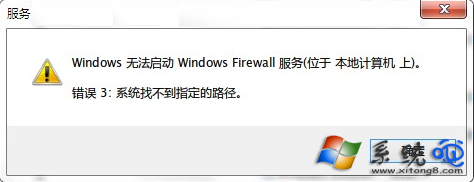
適用範圍:此法適用於所有因 ImagePath 錯誤導致的「錯誤 3」。修改登錄檔前建議匯出該分支備份。若不確定正確路徑,可參考同版本正常電腦的對應登錄值。