Windows Server 時間同步看似簡單,實際操作常因服務依賴、群組原則、防火牆等多重因素導致失效。本文記錄一次完整排查修復過程。
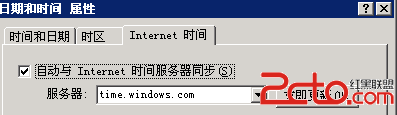
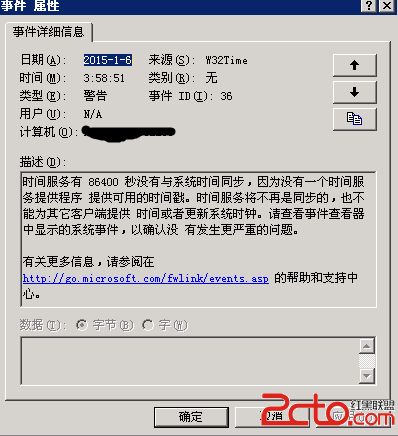
介面顯示「同步成功」但時間仍偏移。檢視系統日誌發現 Windows Time 服務錯誤事件,提示無法連線 NTP 伺服器。
路徑:Win+R → services.msc
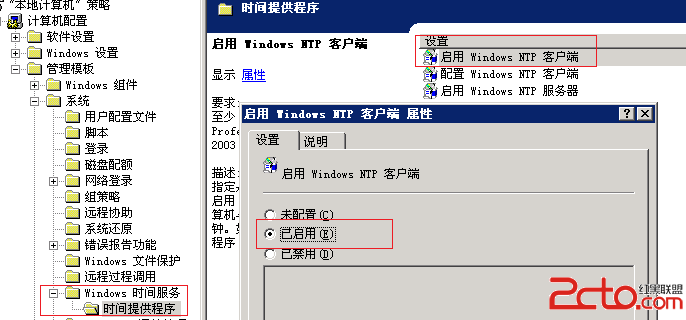
gpedit.msc啟用 Windows NTP 用戶端 設為 已啟用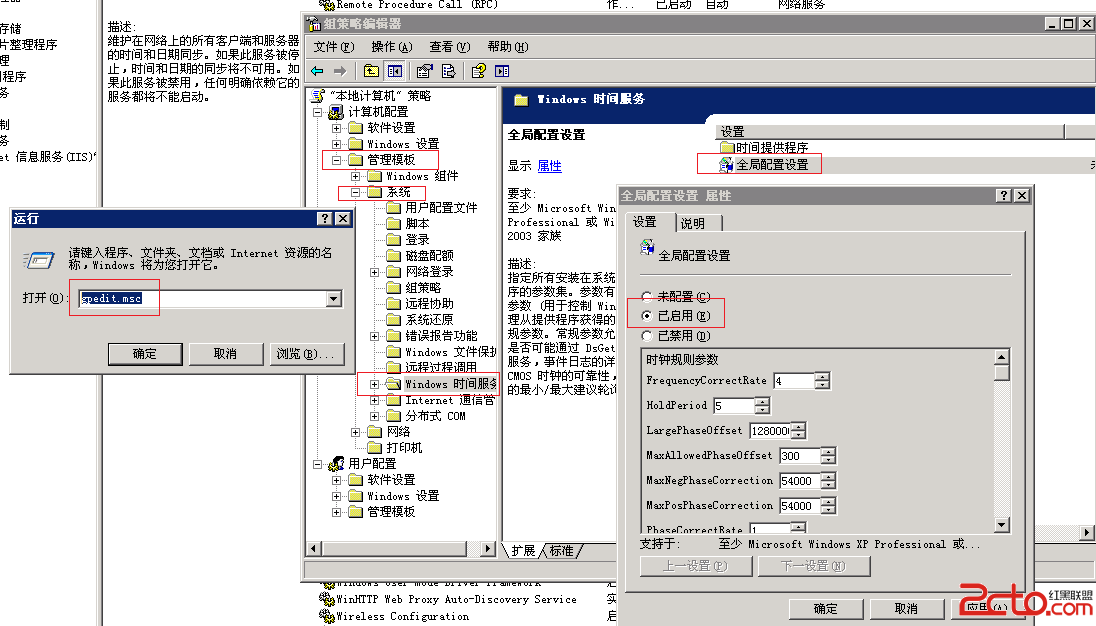
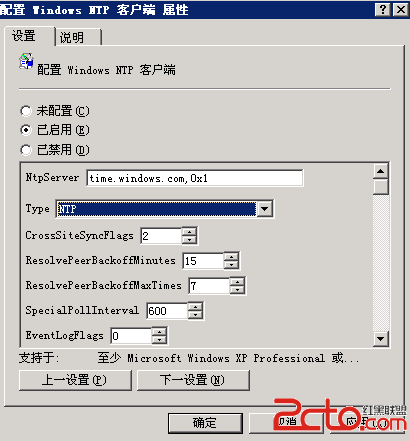
| 參數 | 建議值 | 說明 |
|---|---|---|
| NtpServer | time.windows.com,0x9 | 0x9 = 客戶端模式 + 需驗證 |
| Type | NTP | 使用 NTP 協定 |
| SpecialPollInterval | 600 | 輪詢間隔(秒),10 分鐘一次 |
| 視環境而定 | 最大相位修正秒數 |
gpupdate /forcenet stop w32time && net start w32time,同步重啟 RPCw32tm /query /status 檢視同步狀態與來源若仍失效,檢查防火牆 UDP 123 埠是否放行,或嘗試指定內網 NTP 伺服器。時間同步是分散式系統的基石,值得徹底搞定每個環節。