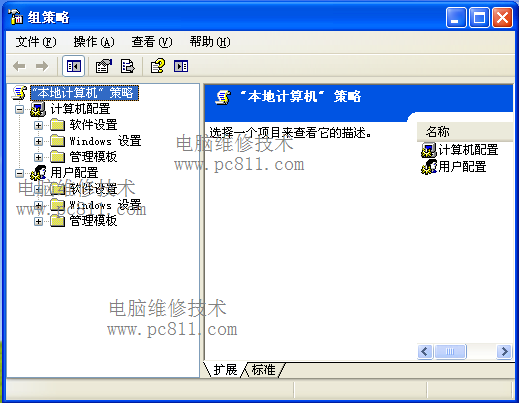
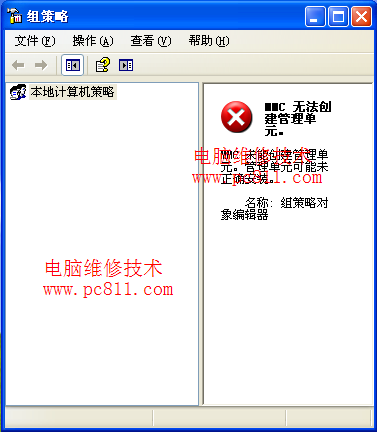
群組原則編輯器是 Windows 進階管理神器,控制系統行為、安全性、介面呈現。本文彙整開啟方法、實體檔案位置、常見故障(打不開、開啟空白)解決方案。
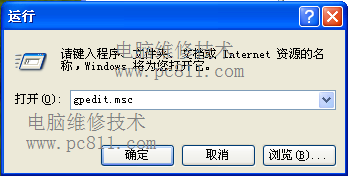
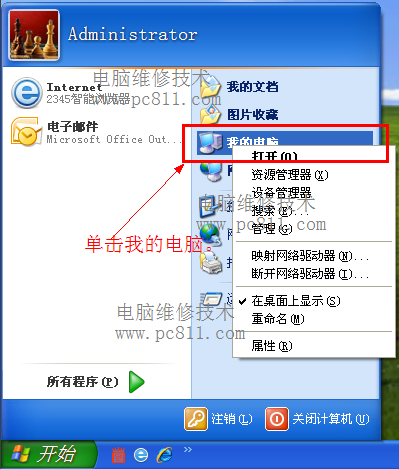
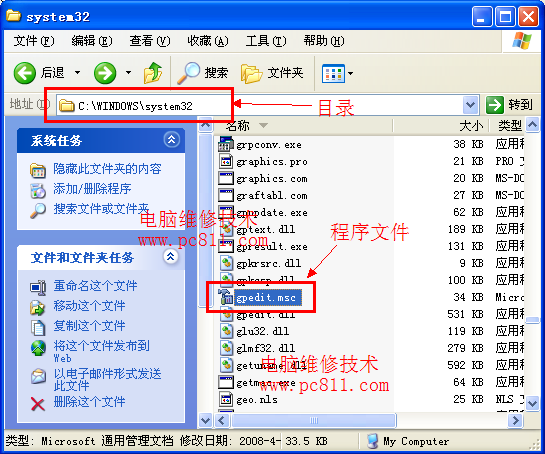
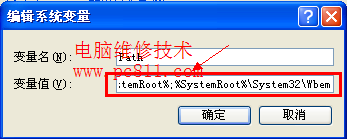
gpedit.msc → Enter。C:\Windows\System32\gpedit.msc 雙擊(系統盤代號視安裝而定)。gpedit.msc 點擊。gpedit.msc 覆蓋 C:\Windows\System32\,失敗時進安全模式覆蓋。主因為環境變數 Path 損毀。修復步驟:
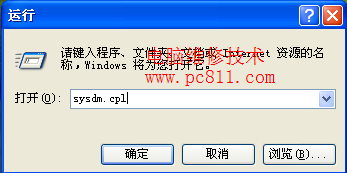
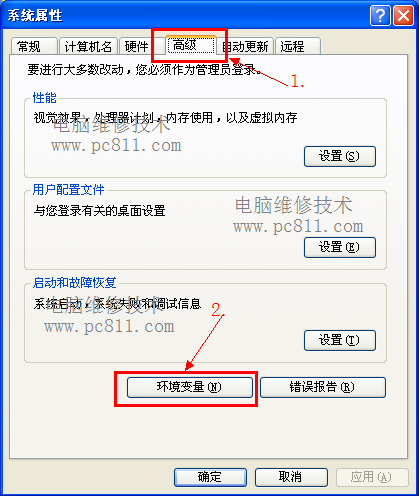
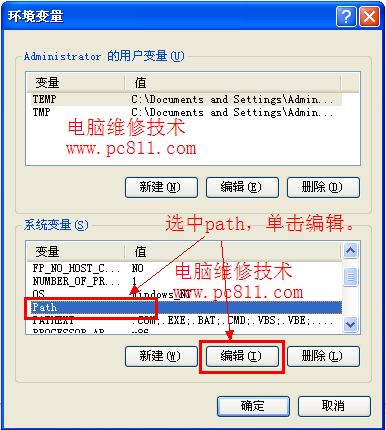
sysdm.cpl 開啟系統內容。Path → 編輯。%SystemRoot%\system32;%SystemRoot%;%SystemRoot%\System32\Wbemgpedit.msc 應恢復正常。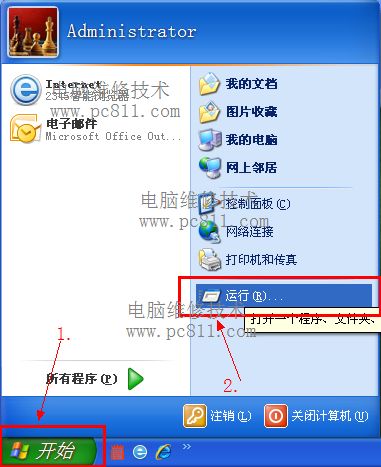
還沒收到 Win10 升級通知?別急,微軟官方:分批推送需幾週,強制升級易出錯
Win10 如何將 Dynamics CRM 帳戶連結到 Cortana?筆記本中新增連結帳戶即可
Win10 Mobile/PC 週年更新補丁 14393.314 曝光:版本號大幅跳躍預示大量修復
Win7 如何刪除 EFI 系統分區?Diskpart 清除磁碟重新分區完整教學
Win7 64位 提高鼠標精準度:啟用「提高指針精確度」選項
Win10 系統需求規格:1GHz 處理器、1GB/2GB 記憶體、16GB/20GB 硬碟空間、DirectX 9 顯卡