Windows XP Windows 7 Windows 2003 Windows Vista Windows 綜合教學 Linux 系統教學
Windows 10 Windows 8 Windows 2008 Windows NT Windows Server 電腦軟體教學
您现在的位置: Windows教程網 >> Windows教程 >  >> Windows 綜合教學 >> 關於 Windows

Windows 10 寬帶連線錯誤 813 根治方案:關機批次檔自動斷線再關機

編輯:關於 Windows

Windows 10 寬帶撥號(PPPoE)出現錯誤 813「嘗試建立連線時發生錯誤」,主因為關機未先斷開撥號連線,導致下次開機連線狀態衝突。根治方案:建立關機批次檔,雙擊執行先斷線再關機。
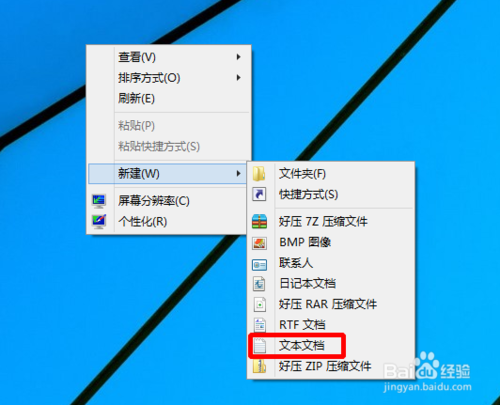
建立關機批次檔步驟

  1. 桌面右鍵 → 「新增」→「文字文件」。
    新增文字文件
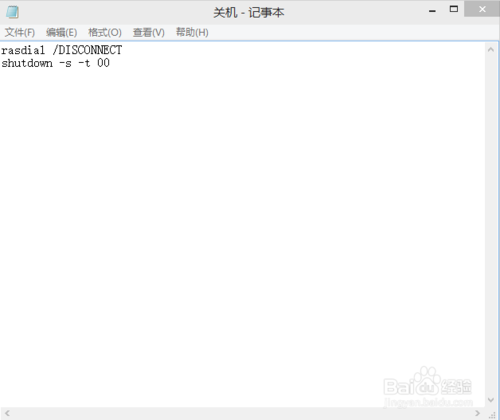
  2. 開啟貼上以下內容並儲存:
    rasdial /DISCONNECT
    shutdown -s -t 00
    批次檔內容
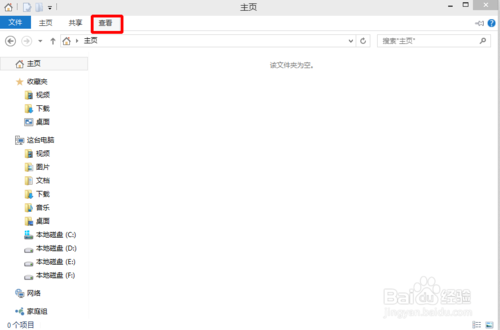
  3. 開啟檔案總管 → 「檢視」→ 勾選「檔案副檔名」。
    顯示副檔名
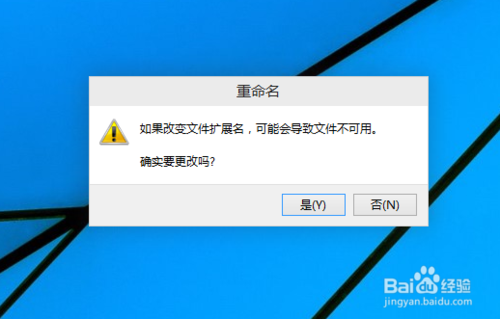
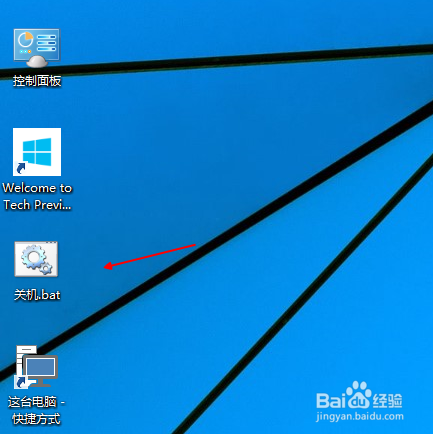
  4. 將檔案重新命名為 關機.bat(確認副檔名從 .txt 變為 .bat)。
    重新命名為關機.bat
    確認副檔名變更
  5. 以後關機請雙擊此 關機.bat,系統將先執行 rasdial /DISCONNECT 斷開所有撥號連線,再執行 shutdown -s -t 00 立即關機。
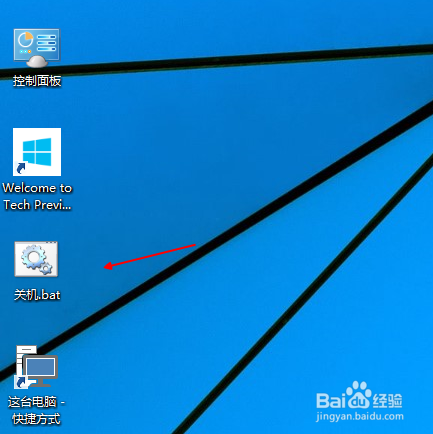
    雙擊關機.bat 效果

原理解析

  • rasdial /DISCONNECT:釋放所有 RAS 撥號連線,清除連線狀態鎖定。
  • shutdown -s -t 00:立即關機(-s 關機,-t 00 延遲 0 秒)。


  • 避免下次開機時網卡/撥號介面殘留連線狀態導致錯誤 813。

替代方案

  • 「網路連線」→ 右鍵寬帶連線 → 「內容」→ 「選項」→ 勾選「提示名稱、密碼、憑證等」強制每次手動撥號。
  • 使用路由器撥號(撥號功能下放至路由器),電腦僅透過 DHCP 取得 IP,徹底避免撥號錯誤。
Copyright © Windows教程網 All Rights Reserved