Windows XP Windows 7 Windows 2003 Windows Vista Windows 綜合教學 Linux 系統教學
Windows 10 Windows 8 Windows 2008 Windows NT Windows Server 電腦軟體教學
您现在的位置: Windows教程網 >> Windows教程 >  >> Windows 綜合教學 >> 關於 Windows

Windows 10 更換桌面背景教學:右鍵設定與個人化進階選項 (填充/置中/拉伸)

編輯:關於 Windows

Windows 10 更換桌面背景有兩種方式,進階選項可控制圖片顯示模式。

方法一:最快捷 — 圖片右鍵直接設定

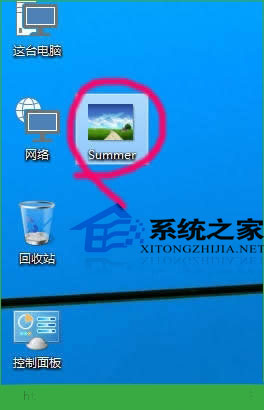
  1. 找到喜歡的圖片 (解析度勿過低)。
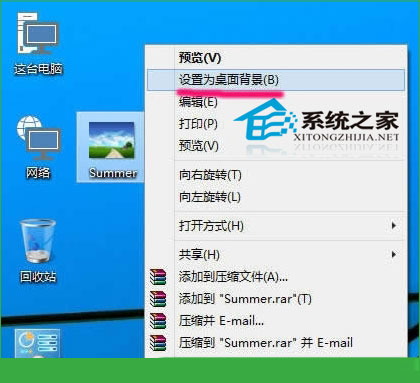
  2. 右鍵點擊圖片 → 選擇【設為桌面背景】。
  3. 預設為「拉伸」模式填滿螢幕。

方法二:個人化設定 — 可調整顯示模式

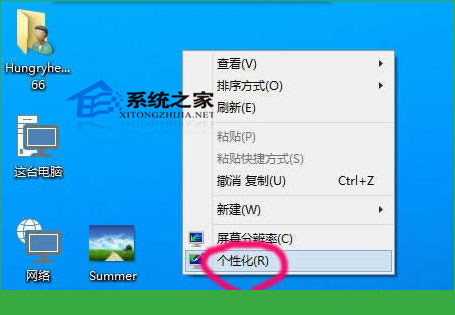
  1. 桌面空白處右鍵 → 【個人化】。
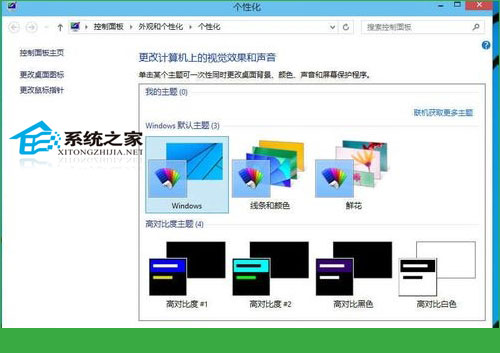
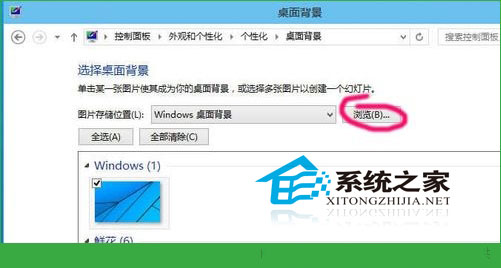
  2. 點擊下方【桌面背景】。
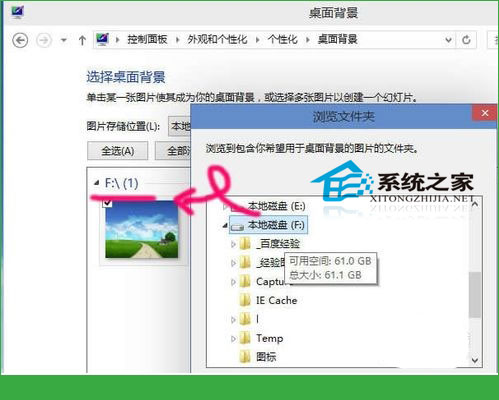
  3. 點擊【瀏覽】選擇資料夾 (僅能定位資料夾,非單一檔案)。
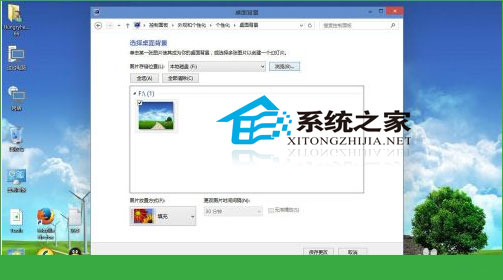
  4. 從清單勾選欲使用的圖片,可設定 圖片位置:填充 / 置中 / 拉伸 / 平鋪 / 跨螢幕。
  5. 確定套用。

方法二唯一優勢:可精確控制圖片顯示比例與裁切方式,打造最舒適的視覺體驗。

Copyright © Windows教程網 All Rights Reserved