新安裝 Windows 10 後,若覺得應用程式啟動不夠迅速,可嘗試啟用「快速啟動」機制。本文介紹透過登錄編輯器新增鍵值來縮短應用啟動延遲的方法。
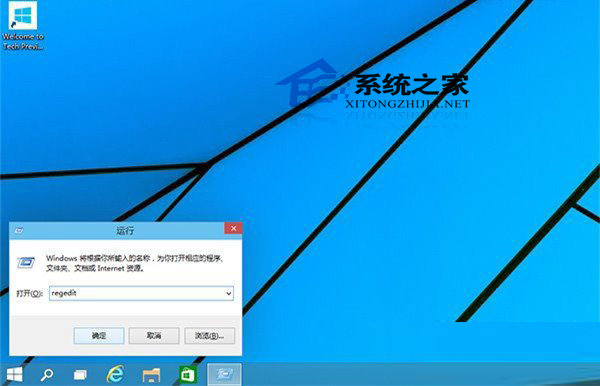
按 Win + R 開啟「執行」視窗,輸入 regedit 並按 Enter。
依序展開路徑:
HKEY_CURRENT_USER\Software\Microsoft\Windows\CurrentVersion\Explorer\Serialize
若找不到 Serialize 鍵,在 Explorer 上右鍵 → 新增 → 鍵,命名為 Serialize。
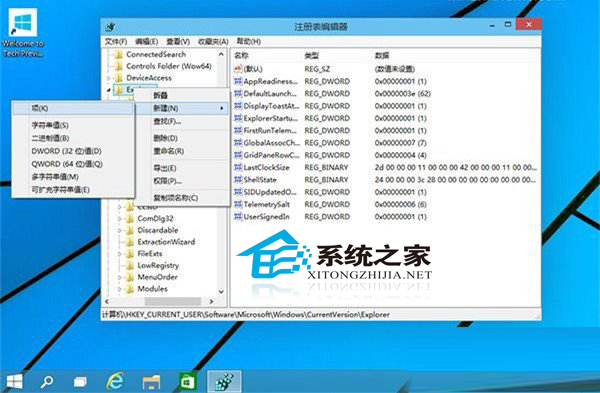
在 Serialize 右側空白處右鍵 → 新增 → DWORD (32 位元) 值,名稱設為 StartupDelayInMSec,雙擊將數值資料改為 0,按確定。
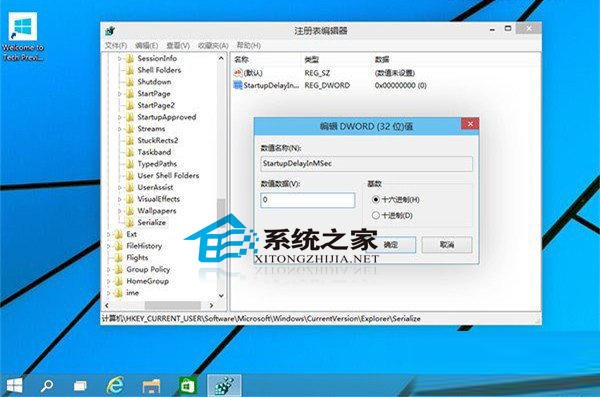
重新啟動電腦後設定即生效。此調整可縮短應用程式啟動時的內建延遲。注意:若「啟動」資料夾內無啟動項目,則不會有感知差異。