Windows XP Windows 7 Windows 2003 Windows Vista Windows 綜合教學 Linux 系統教學
Windows 10 Windows 8 Windows 2008 Windows NT Windows Server 電腦軟體教學
您现在的位置: Windows教程網 >> Windows教程 >  >> Windows 綜合教學 >> 關於 Windows

Windows 7/8 啟用 BitLocker 磁碟加密完整教學:保護機密檔案、防止未授權存取

編輯:關於 Windows

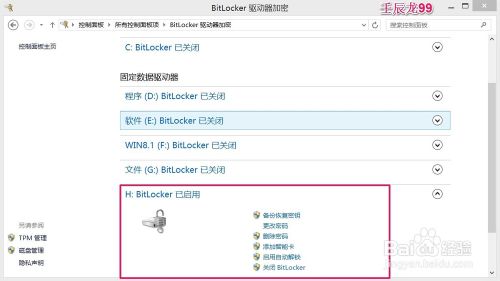
Windows 7/8 專業版與企業版內建 BitLocker 磁碟機加密,無需第三方軟體即可保護敏感資料。以下為完整操作流程:

啟用 BitLocker 加密磁碟機

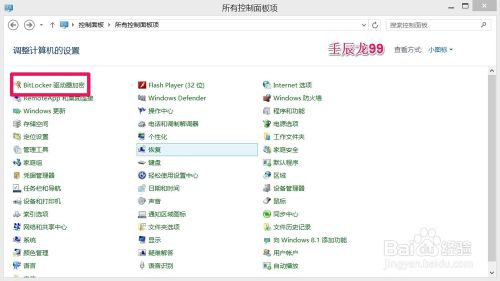
  1. 控制台 → 「BitLocker 磁碟機加密」(大圖示檢視)。
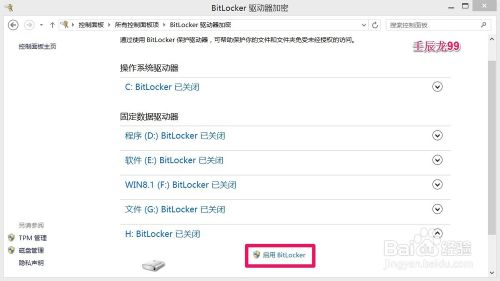
  2. 選擇欲加密磁碟機 (如 H:),點選「開啟 BitLocker」。
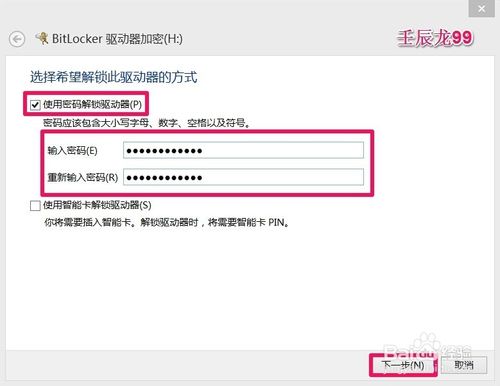
  3. 勾選「使用密碼解鎖磁碟機」,輸入兩次密碼,按「下一步」。
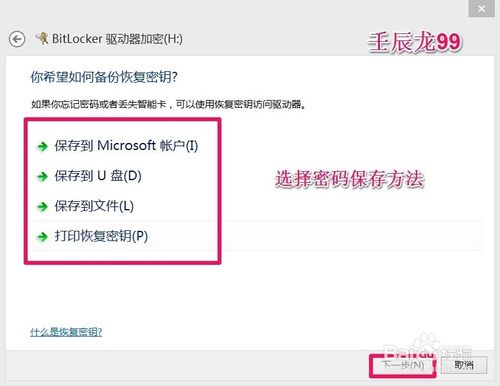
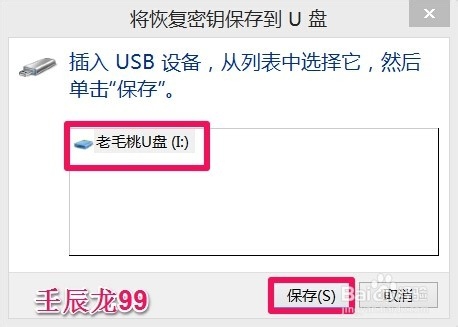
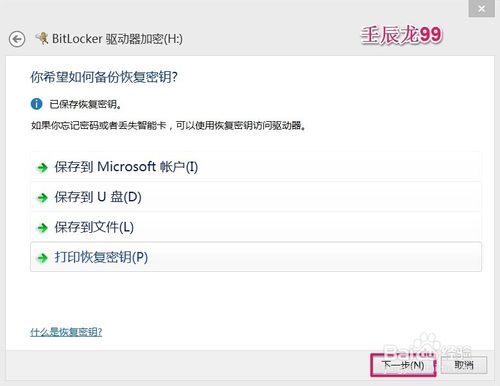
  4. 備份復原金鑰:建議「儲存至 USB 隨身碟」或「列印」,按「下一步」。
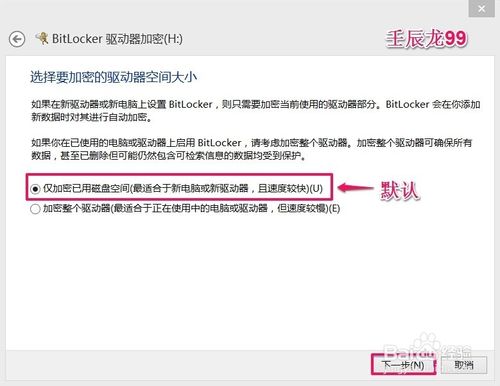
  5. 選擇加密範圍:新磁碟機選「僅加密已使用的磁碟機空間」(較快);已有資料磁碟機建議「加密整個磁碟機」。按「下一步」。
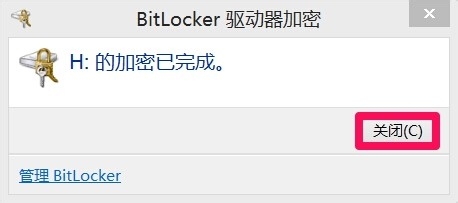
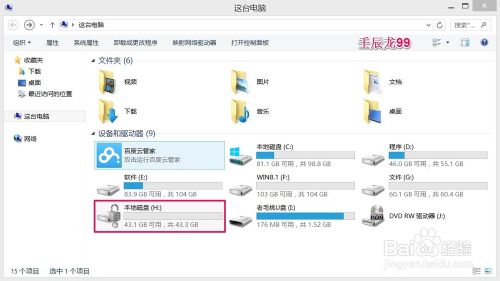
  6. 按「開始加密」,等待完成,磁碟機圖示將出現鎖頭圖示。

BitLocker 重要特性

  • 授權使用者正常存取,自動阻擋駭客與未授權用戶。
  • 新增檔案自動加密。
  • 檔案複製至未加密磁碟機會自動解密,唯有留在加密磁碟機才受保護。

關閉 BitLocker 解密磁碟機

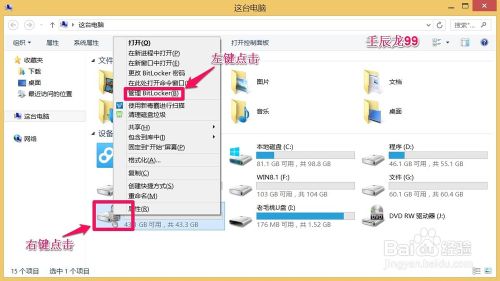
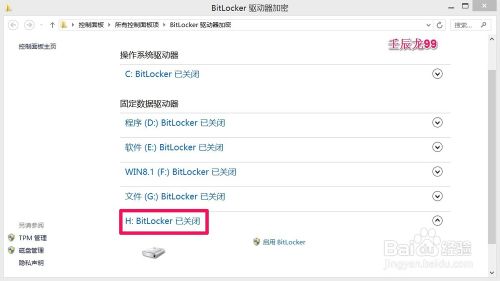
  1. 「電腦」中右鍵加密磁碟機 (帶鎖頭圖示) → 「管理 BitLocker」。
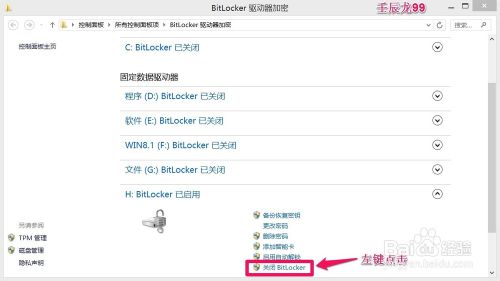
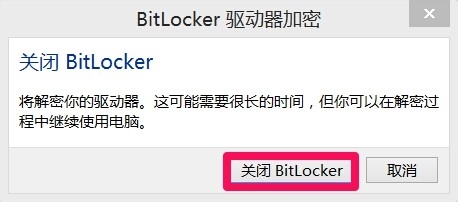
  2. 點選「關閉 BitLocker」→ 確認「關閉 BitLocker」解密。
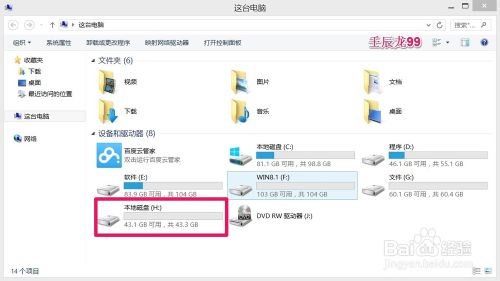
  3. 解密完成後鎖頭圖示消失,磁碟機恢復一般狀態。
Copyright © Windows教程網 All Rights Reserved