無需光碟或 USB 隨身碟,直接在現有 Windows 系統下利用「軟媒魔方」的「硬盤裝機」功能,即可將 Windows 10 ISO 映像檔解壓至非系統分區並建立啟動項,重開機後進入安裝程式完成部署。適合已有 Win7/Win8.1 環境的使用者快速體驗 Win10。
準備工作
- 下載 Windows 10 Technical Preview x64/zH-CN 9926 ISO 檔。
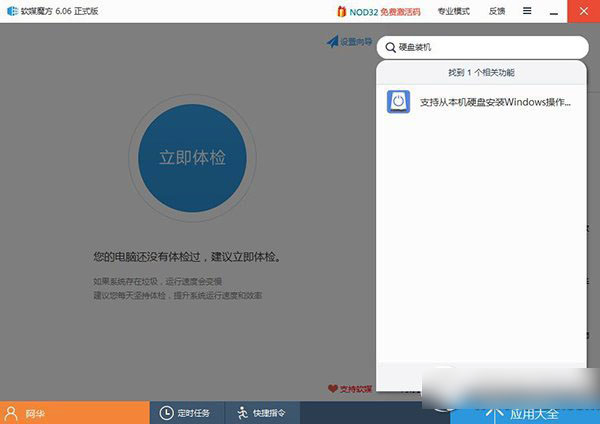
- 安裝「軟媒魔方」,主介面搜尋或右下角「應用大全」中找到「軟媒硬盤裝機」。
詳細安裝步驟
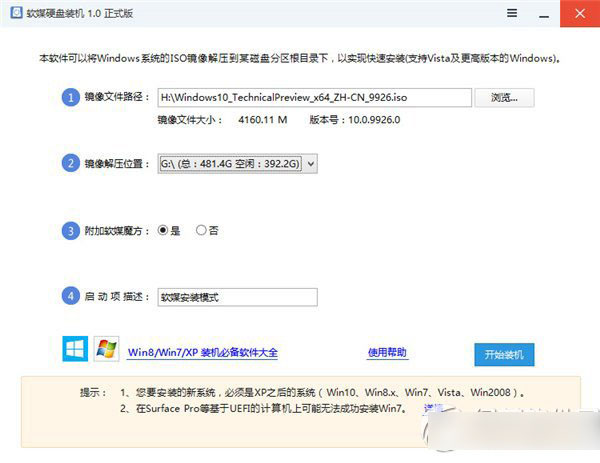
- 映像檔路徑:選擇下載好的 ISO 檔(如
Windows10_TechnicalPreview_x64_ZH-CN_9926.ISO)。
- 映像解壓位置:選擇任一非系統分區,剩餘空間需大於 5 GB。
- 附加軟媒魔方:建議勾選「是」,安裝完成後可直接使用軟體管家、設定大師等工具;亦可選「否」或事後移除。
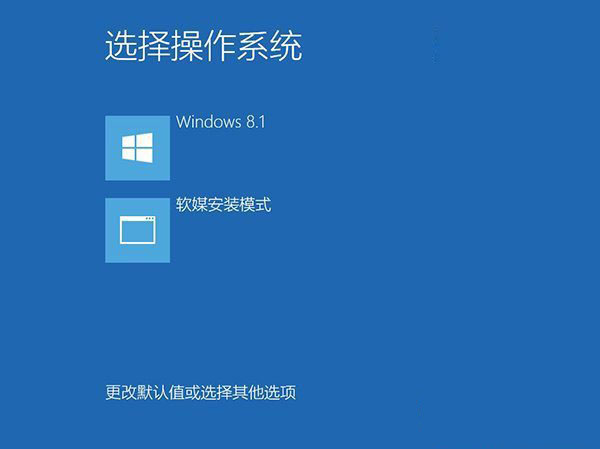
- 啟動項描述:自訂重開機後顯示的啟動選單名稱(預設「軟媒安裝模式」)。
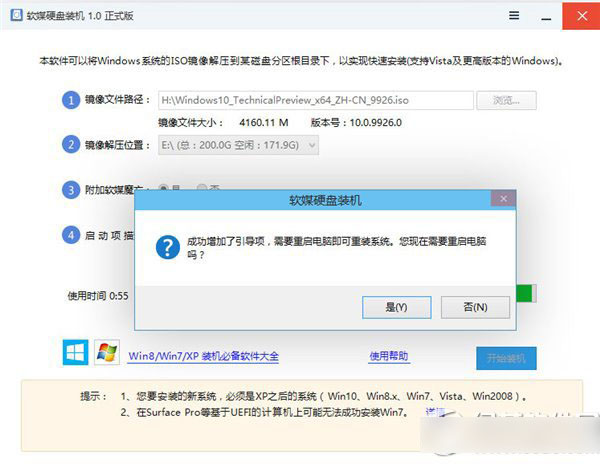
- 點擊「開始裝機」,等待解壓與建立啟動項完成,彈出視窗確認重開機。
小技巧
- 解壓產生的系統檔案位於所選分區根目錄,安裝完成後可手動刪除以釋放空間,或保留備用。
- 若分區已存在解壓檔案,下次重裝時會提示「安裝映像檔已存在」,直接選「是」即可跳過解壓,節省時間。
相關推薦
- Win10 9926 下載位址
- Win10 9926 怎麼安裝?Windows 10 預覽版 9926 安裝方法詳解(多圖)