Windows 原生支援 CIFS/SMB 協定,Linux 透過 Samba 提供 CIFS 服務端與客戶端,可實現雙向無縫檔案共享。本文以 Fedora/CentOS 為例,詳細說明「Linux 做 Samba Server 共享給 Windows」與「Windows 共享資料夾掛載到 Linux」兩大經典架構的安裝、配置、驗證全流程。
yum install samba -y
[root]
    comment = root
    path = /
    create mask = 0644
    writeable = yes
    browseable = yes
    valid users = root
smbpasswd -a root   # 設定密碼
service smb restart # 或 systemctl restart smb
ps -ef | grep smbd  # 確認進程
\\192.168.1.110 → 輸入 root/密碼 → 可瀏覽 Linux 根目錄。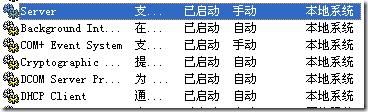
services.msc)。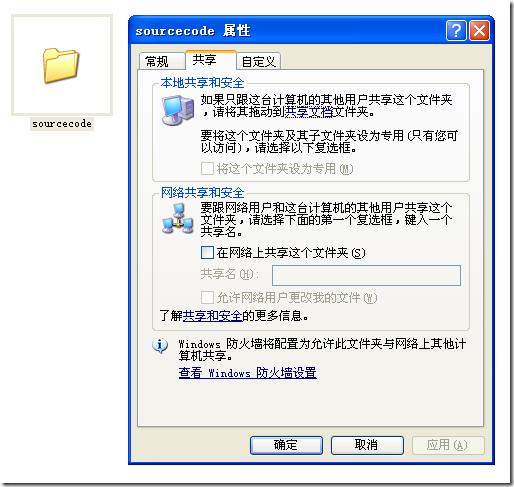
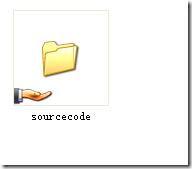
mkdir -p /root/sourcecode
mount -t cifs -o username="Test" //192.168.1.100/sourcecode /root/sourcecode
# 輸入密碼後掛載完成,ls /root/sourcecode 即可看到檔案
//192.168.1.100/sourcecode /root/sourcecode cifs username=Test,password=Pass,iocharset=utf8,vers=3.0 0 0
※ 建議使用憑證檔 credentials=/etc/smbcred 避免密碼明文寫入 fstab。
setsebool -P samba_export_all_rw=1 或設定正確 context。uid=xxx,gid=xxx,file_mode=0644,dir_mode=0755 選項。vers=1.0 或 vers=2.0。Samba (CIFS) 是跨平台檔案共享的標準解法,成熟、效能佳、支援 ACL/加密/多通道。若環境為純 Linux 叢集,NFS 更輕量;但異構環境下,CIFS 為首選。
盗版 Win7/8.1 能免费升级 Win10 吗?微软官方说不,实测却有人成功
Win8.1 執行程式提示缺少 alt100.dll / 0xC0000130?病毒損壞 DLL 修復全流程
Win7 開關機變慢?12 招優化建議從清理桌面到換 SSD
Win10 應用載入失敗/無回應?PowerShell 一鍵重置所有 Modern 應用修復
Win10 任務列全透明/玻璃效果:Classic Shell → Windows 10 設定 → Taskbar look 選 Transparent 或 Glass+Opacity 0
Windows 10 技術預覽版官方下載連結大全(含簡體中文 32/64 位元)