Windows XP Windows 7 Windows 2003 Windows Vista Windows 綜合教學 Linux 系統教學
Windows 10 Windows 8 Windows 2008 Windows NT Windows Server 電腦軟體教學
您现在的位置: Windows教程網 >> Windows教程 >  >> Windows 綜合教學 >> 關於 Windows

Windows 10 保持系統最新狀態:全新「設定」介面下的更新管理教學

編輯:關於 Windows

介面變革

Windows 10 將 Windows Update 從控制台移至全新「設定」App,路徑為:開始 → 設定 (齒輪圖示) → 更新與安全性 → Windows Update。
操作步驟

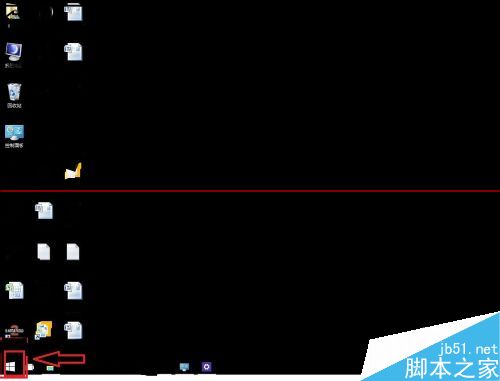
  1. 點擊工作列左下角 開始按鈕。
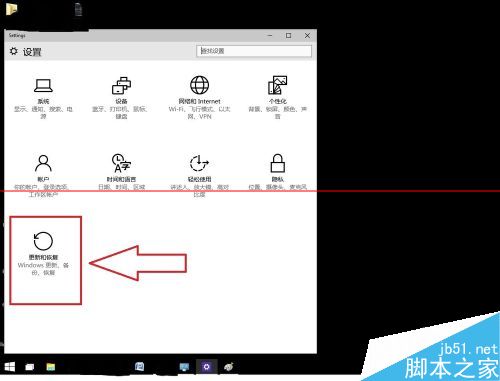
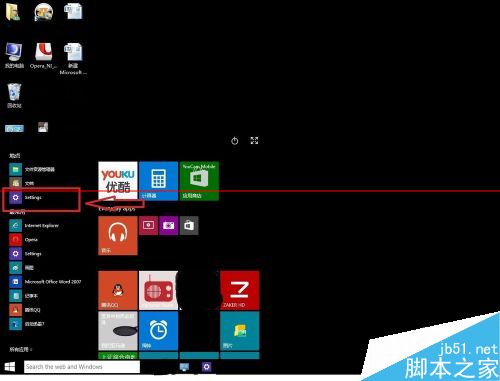
  2. 選擇 設定 (齒輪圖示)。
  3. 點擊 更新與安全性 (雙箭頭圖示)。
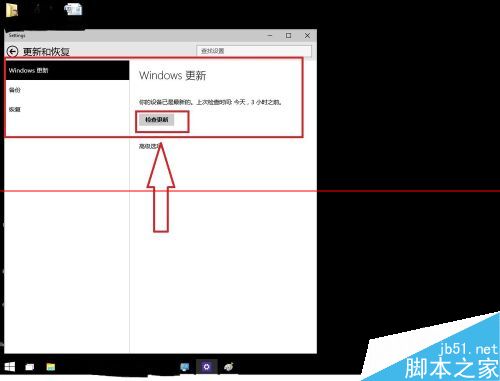
  4. 預設即在 Windows Update 頁籤,點擊「檢查更新」即可下載安裝最新累積更新、驅動程式、功能更新。

圖片資訊

開始選單設定入口

設定首頁

更新與安全性分類

Windows Update 頁面

進階管理技巧

  • 作用中時段:設定裝置通常使用時間,避免自動重開機干擾工作。
  • 進階選項:可選擇「半年通道」或「半年通道 (鎖定)」、延遲功能更新 365 天、延遲品質更新 30 天。
  • 傳遞優化:開啟「從多個位置下載」可利用區域網路/網際網路其他 PC 分享更新檔,加速下載並節省頻寬。
  • Insider Preview:若加入 Windows Insider 計畫,可在「Windows Insider 計畫」頁籤選擇 Dev/Beta/Release Preview 通道。

相關延伸閱讀

Copyright © Windows教程網 All Rights Reserved