.exe 執行檔關聯損壞導致所有程式無法開啟,Win7 提供兩種修復路徑:建立新管理員帳戶 (最快) 或刪除圖示快取並重建 Explorer 進程 (不想新增帳戶者適用)。
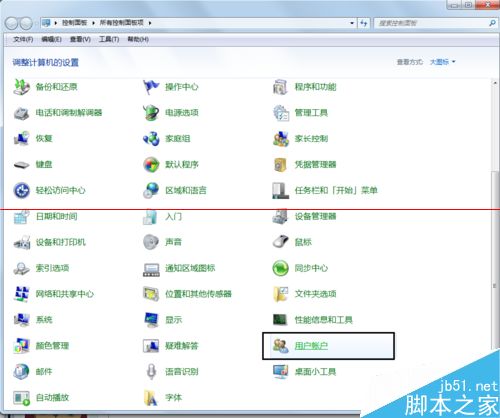

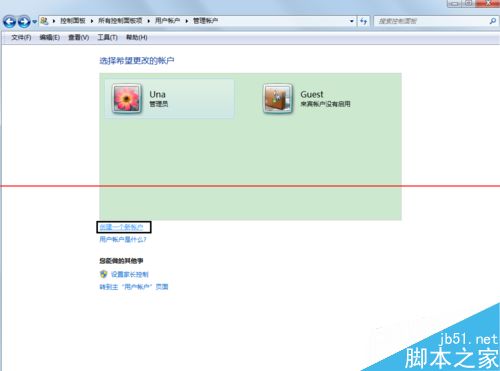
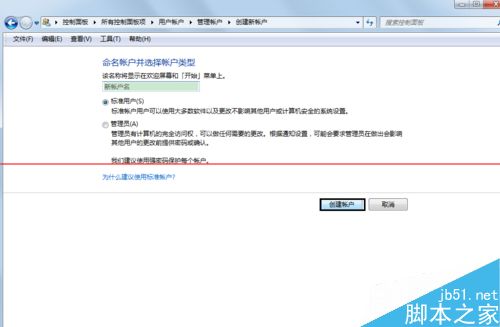
C:\Users\您的帳戶名\AppData\Local,刪除 IconCache.db。explorer.exe → 右鍵「結束工作」。explorer.exe → 確定,重建桌面進程。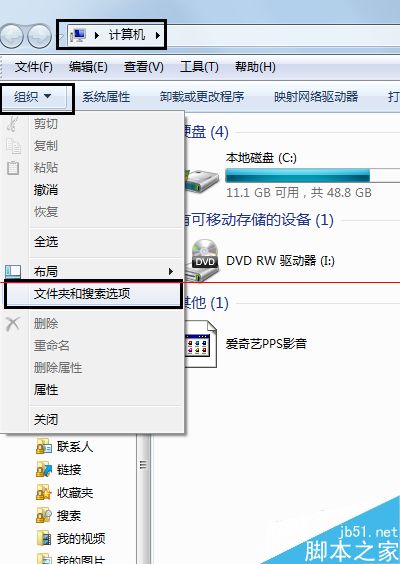
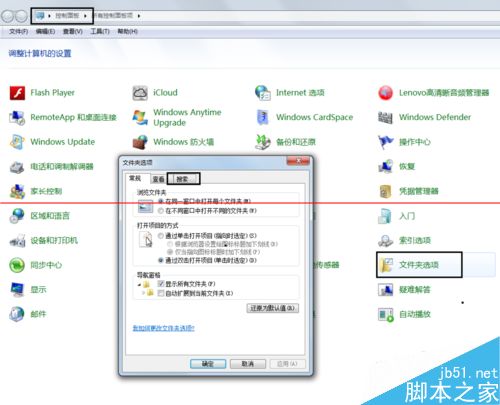
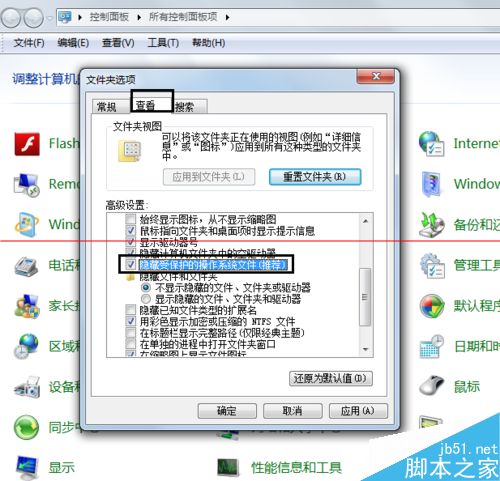

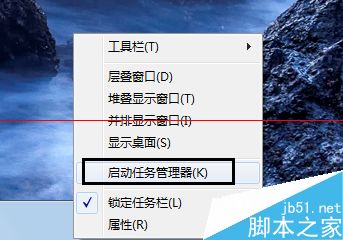
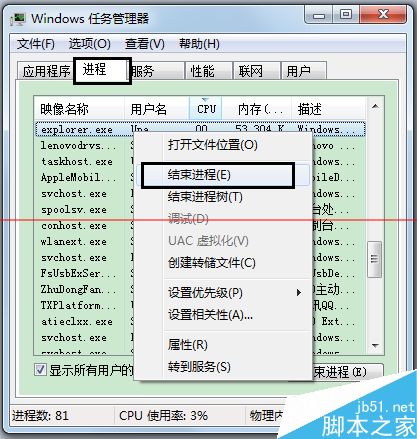
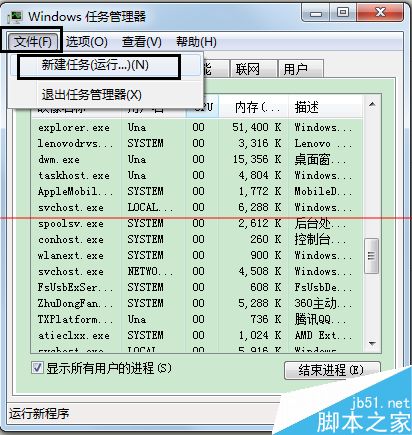
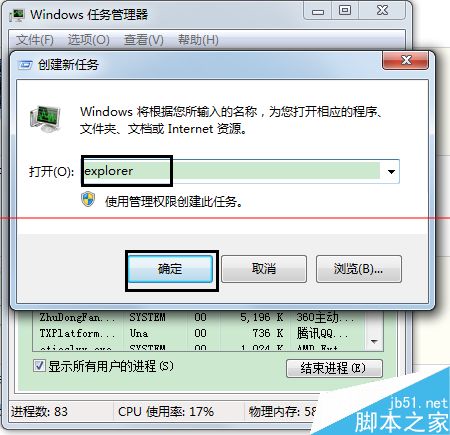
注意: 方案二僅適用於 Windows 7。若方案二無效,建議採用方案一新建帳戶遷移資料,最省時穩妥。
Win10 Mobile 10166 正式推送:修復 10149 大量已知 Bug,UI 細節再優化
硬碟安裝 Win10 專業版圖文詳解,軟媒魔方硬碟裝機免隨身碟
Win7 查看本地 IP 與網卡實體位址 (MAC) 指令教程:ipconfig /all 一鍵顯示
Win8.1 Runtime Broker 進程能否停用?核心系統進程不可禁用,高佔用記憶體請檢查磚塊應用
Win10 內建 App 如何批次移除?PowerShell 指令大全 (含 15 款常見預裝應用)
Win10 Build 9879 技術預覽版更新彙總:隱藏任務列按鈕、流暢動畫、漢堡選單、三指手勢等