Windows XP Windows 7 Windows 2003 Windows Vista Windows 綜合教學 Linux 系統教學
Windows 10 Windows 8 Windows 2008 Windows NT Windows Server 電腦軟體教學
您现在的位置: Windows教程網 >> Windows教程 >  >> Windows 綜合教學 >> 關於 Windows

Windows 10 Build 10122 數字鍵盤指示燈不亮?三種解決方案:登錄、BIOS、重啟大法

編輯:關於 Windows

升級 Build 10122 後開機數字鍵盤 NumLock 指示燈不亮,導致無法輸入密碼。提供三種修復方案:

方法一:修改登錄初始鍵盤指示器狀態

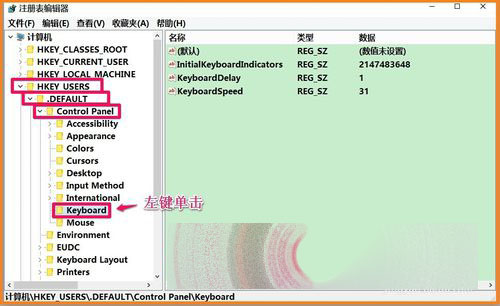
  1. Win+R → regedit → 定位 HKEY_USERS\.DEFAULT\Control Panel\Keyboard
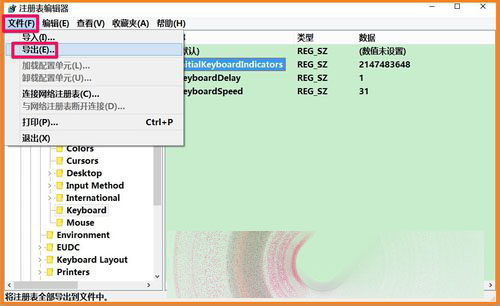
  2. 備份 InitialKeyboardIndicators (匯出為 小鍵盤.reg)
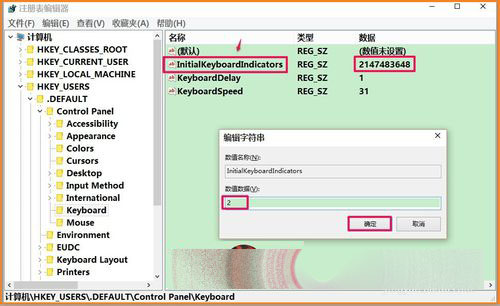
  3. 將數值從 2147483648 改為 2 → 確定 → 重開機。
開機數字鍵盤指示燈不亮 regedit 開啟登錄編輯器 定位 Keyboard 初始鍵盤指示器 匯出備份 InitialKeyboardIndicators 儲存備份檔 修改數值為 2

方法二:BIOS 設定 Boot Up NumLock Status 為 Enabled

  1. 開機進入 BIOS (通常 F2/Del/F12)
  2. 找到 Boot Up NumLock Status → 設為 Enabled → F10 儲存離開。
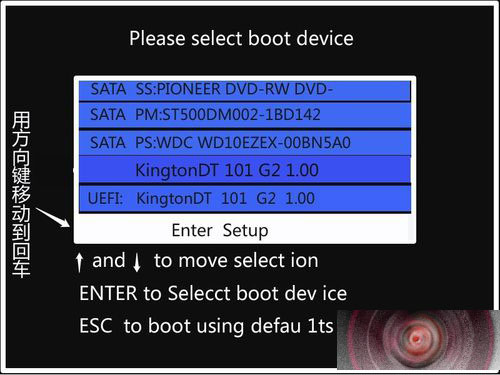
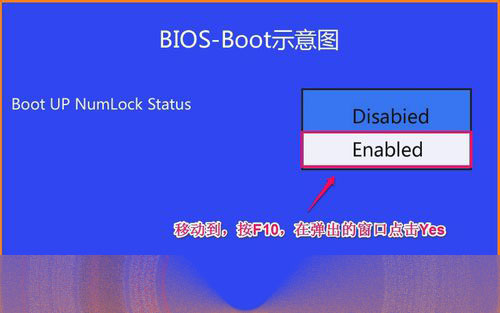
進入 BIOS 選單 設定 Boot Up NumLock Status Enabled

方法三:開機登入畫面手動開啟 NumLock 後重啟

  1. 開機至登入介面
  2. 按 NumLock 開啟指示燈 (不輸入密碼)
  3. 按機箱重啟鍵重新開機
  4. 後續開機指示燈將保持開啟。
登入畫面手動開啟 NumLock

實測三種方法均有效,建議優先嘗試方法一 (登錄) 或方法二 (BIOS) 為永久修復。

Copyright © Windows教程網 All Rights Reserved