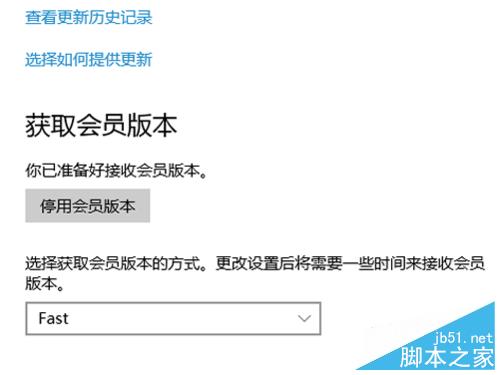
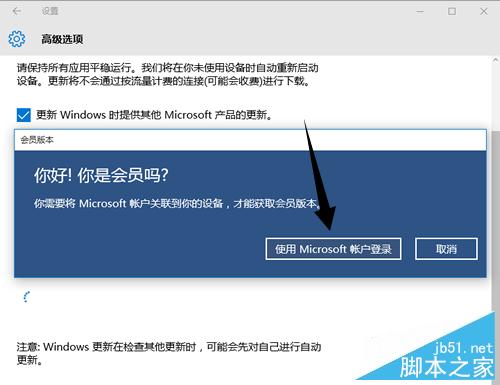
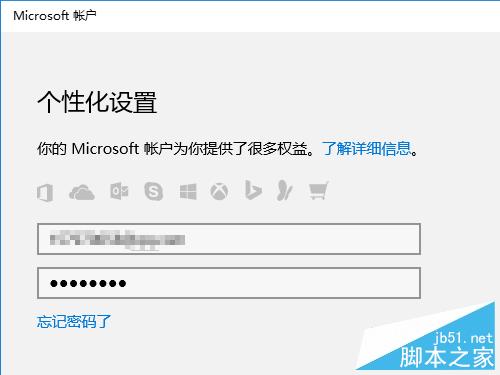
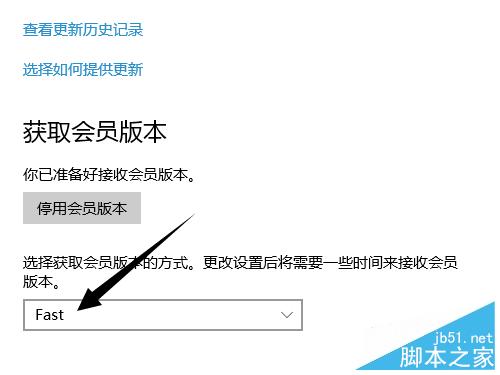
Win10 更新進階選項缺少「快速/慢速」更新通道選項?需先啟用「取得 Insider 組建」並登入 Microsoft 帳戶(預約 Insider 計畫)才會出現。
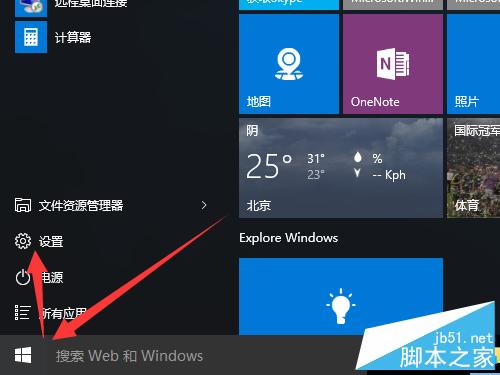
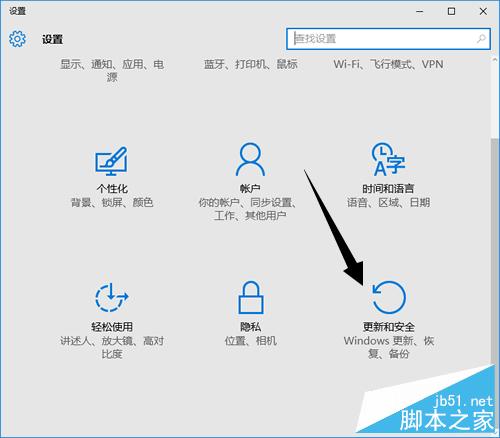
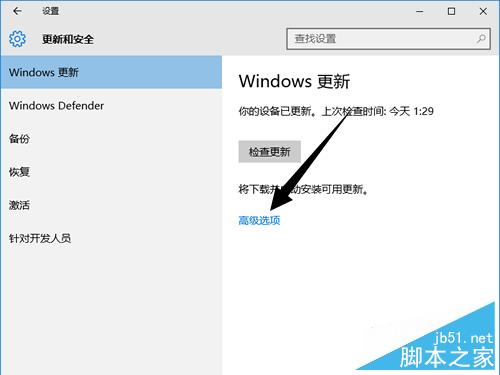
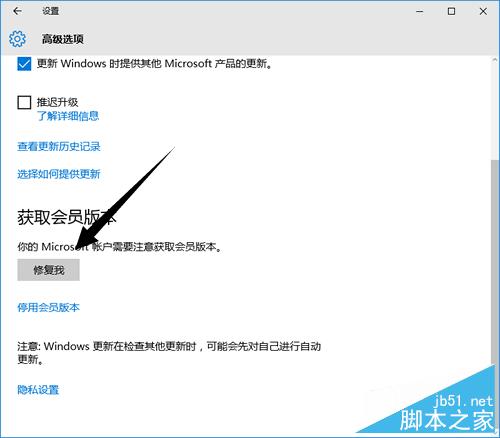
非官方 Windows 10 安裝 Windows Media Center 破解教學:6 步驟完成、百度網盤下載、_TestRights.cmd + Installer.cmd 自動化部署
大陸 Windows 系統無法登入 Google/Gmail?VPN 與修改 hosts 兩大解法
Win7 取消螢幕保護程式恢復時密碼 / 完全停用螢幕保護程式
Windows 10 應用商店無法開啟?啟用使用者帳戶控制 (UAC) 解決方法
Win7 筆電聽音樂出現爆音怎麼辦?註冊表調整 Audiosrv 服務依賴解決
Win10 如何調整虛擬記憶體大小?進階系統設定手動設定初始/最大值