Windows XP Windows 7 Windows 2003 Windows Vista Windows 綜合教學 Linux 系統教學
Windows 10 Windows 8 Windows 2008 Windows NT Windows Server 電腦軟體教學
您现在的位置: Windows教程網 >> Windows教程 >  >> Windows 綜合教學 >> 關於 Windows

Win10 關閉右下角通知中心/操作中心:登錄表法徹底禁用圖示與彈出

編輯:關於 Windows

Win10 右下角操作中心頻繁彈出系統/應用程式通知,干擾專注工作。透過登錄表新增 DisableNotificationCenter 值可徹底禁用操作中心圖示與所有通知彈出。

操作步驟

  1. Win+R > regedit > Enter
  2. 定位:HKEY_CURRENT_USER\SOFTWARE\Policies\Microsoft\Windows\Explorer
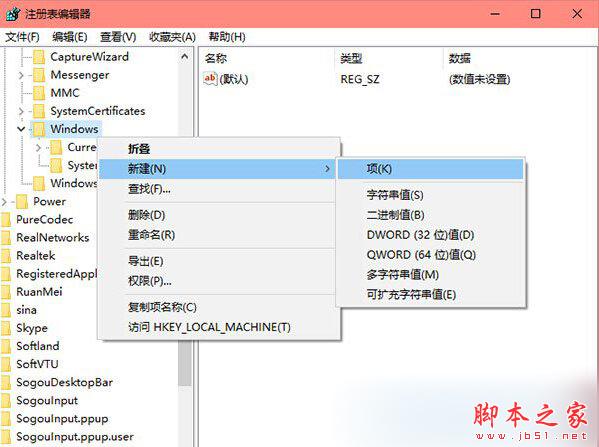
    (若無 Explorer 機碼,右鍵 Windows > 新增 > 機碼 > 命名 Explorer)
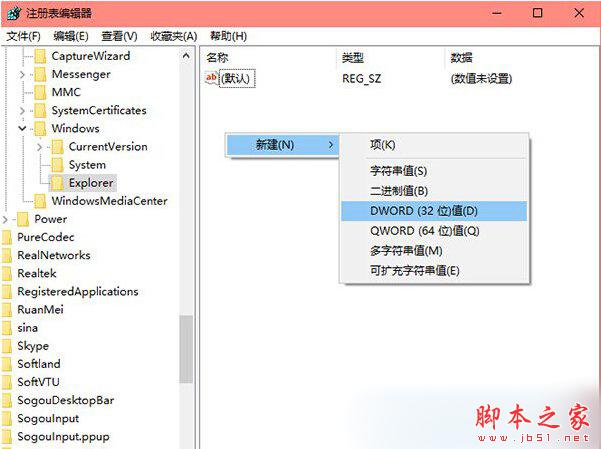
  3. 右鍵右側空白 > 新增 > DWORD (32 位元) 值 > 命名 DisableNotificationCenter
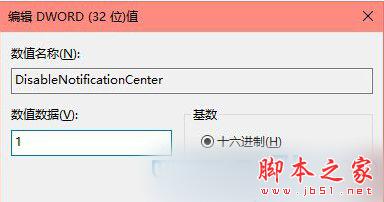
  4. 雙擊修改數值資料為 1 > 確定
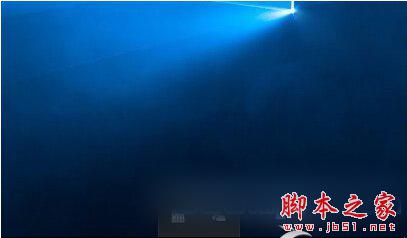
  5. 重新啟動 explorer.exe(工作管理員 > 詳細資料 > 右鍵 explorer.exe > 重新啟動)或重新登入
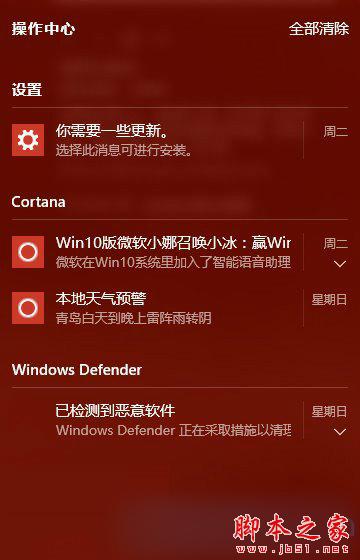
操作中心通知彈出

新增 Explorer 機碼

新增 DisableNotificationCenter DWORD

修改數值為 1

重新啟動 explorer.exe

效果驗證

  • 任務列右側操作中心圖示(對話氣泡圖示)消失
  • 不再彈出任何系統/應用程式快顯通知
  • Win+A 快捷鍵失效

恢復操作中心

  • 刪除 DisableNotificationCenter 值,或將數值改為 0
  • 重新啟動 explorer.exe 即刻恢復

替代方案:僅關閉通知彈出(保留操作中心圖示)

  1. 設定 > 系統 > 通知與動作
  2. 關閉「取得發送者的提示、技巧與建議」等相關開關
  3. 或關閉特定應用程式的通知權限

登錄表一鍵根治,專注工作零干擾。

Copyright © Windows教程網 All Rights Reserved