Windows 10 任務列搜尋框或「設定」App 內搜尋無法輸入、無回應、或搜尋不到已知存在的檔案/設定,多半是因為 %LocalAppData%\Packages\windows.immersivecontrolpanel_cw5n1h2txyewy\LocalState\Indexed 資料夾的索引屬性異常導致。透過切換「允許索引此資料夾中檔案的內容」選項強制重建索引即可解決。
按 Win + R 開啟「執行」,貼上以下路徑並按 Enter:
%LocalAppData%\Packages\windows.immersivecontrolpanel_cw5n1h2txyewy\LocalState
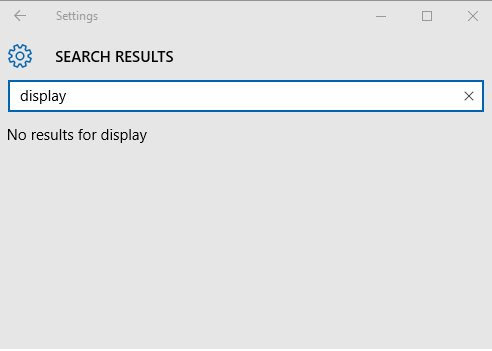
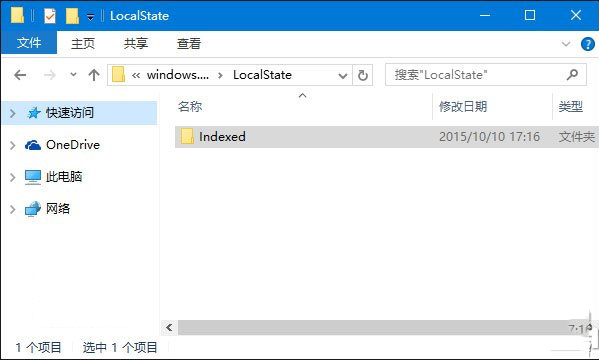
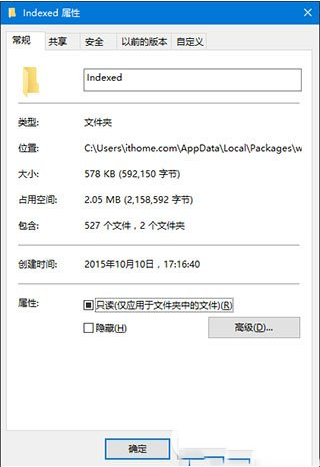
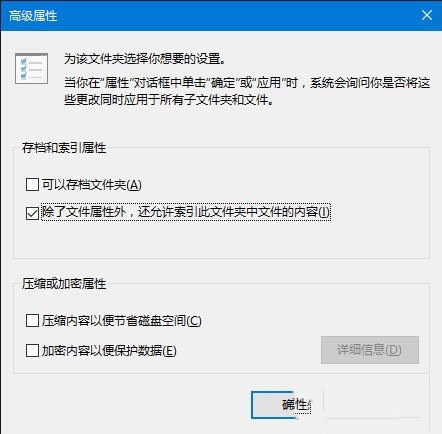
系統會在背景重新建立索引,視檔案數量可能需要數分鐘至數十分鐘。期間搜尋功能可能仍不完整,請耐心等待。
Windows 使用 Windows Search 服務對特定資料夾建立全文索引以加速搜尋。當索引資料庫損毀或屬性標記錯誤時,搜尋服務無法正確讀取內容。切換索引選項會觸發資料庫重建,修復損毀的索引結構。
Get-AppXPackage -AllUsers | Foreach {Add-AppxPackage -DisableDevelopmentMode -Register "$($_.InstallLocation)\AppXManifest.xml"} 重新註冊所有 UWP 應用程式。Windows 8 Metro 磚塊列數自訂教學:登錄編輯器修改行數
Windows 10 Build 9918/9916/9901/9915 預覽版下載資訊彙整:官方 ISO 與內部版本對照
新版 Win10 預覽版即將登陸 PC:將內建手機伴侶 App、跨平台裝置管理
Win10 再生變數:微軟從 Windows Update 撤下 11 月更新,媒體建立工具亦無 10586
Win7 如何查看本機 IP 位址?四種方法快速取得內網與外網 IP
Win7 安裝與設定 IIS 7.5 (ASP Classic) 圖文教學:啟用功能、啟用父路徑、網站進階設定
安裝 Win7 後必做的五項系統優化:關閉 UAC、關閉自動更新、設定虛擬記憶體、轉移暫存檔、更改使用者資料路徑
Win8.1 安裝 Office 365 錯誤 30125-1011 (404)?手動指定 DNS 4.2.2.2/4.2.2.1 或換時間點重試