Windows 7 預設命令提示字元 (CMD) 為黑底白字。若想自訂背景/前景顏色 (如白底黑字、藍底黃字),可透過 登錄檔 DefaultColor 值 設定,效果永久生效且不需第三方工具。本文說明十六進制色碼對照表與設定步驟。
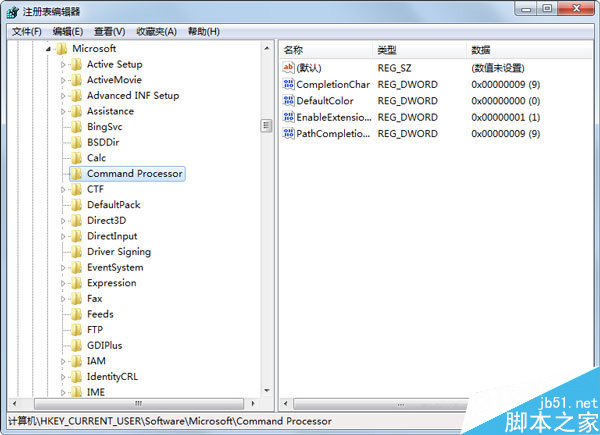
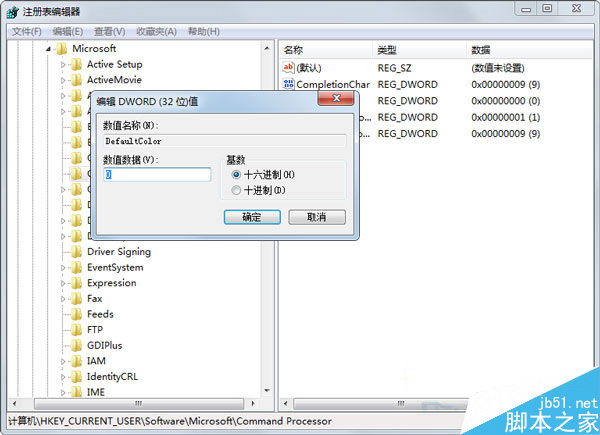
regedit → Enter 開啟登錄編輯器。HKEY_CURRENT_USER\Software\Microsoft\Command ProcessorDefaultColor (字串值/REG_SZ)。若不存在 → 右鍵空白處 → 新增 → 字串值 → 命名 DefaultColor。DefaultColor → 數值資料輸入 兩位十六進制字元: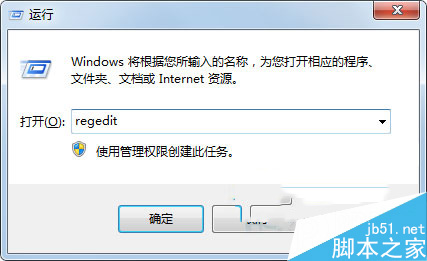
| 代碼 | 顏色 | 代碼 | 顏色 |
|---|---|---|---|
| 0 | 黑色 | 8 | 灰色 |
| 1 | 藍色 | 9 | 淡藍色 |
| 2 | 綠色 | A | 淡綠色 |
| 3 | 淺綠色 (青色) | B | 淡淺綠色 |
| 4 | 紅色 | C | 淡紅色 |
| 5 | 紫色 | D | 淡紫色 |
| 6 | 黃色 (褐色) | E | 淡黃色 |
| 7 | 白色 | F | 亮白色 |
07 (預設) 黑底白字F0 亮白底黑字 (類似記事本/IDE 風格)1F 藍底亮白字 (經典 DOS 藍畫面風格)2E 綠底淡黃字 (護眼綠)4F 紅底亮白字 (高對比警示風格)0A 黑底淡綠字 (駭客/終端機風格)CMD 視窗中直接輸入 color 1F (同上對照表) 即時變色,關閉視窗失效。登錄檔法為永久生效。
cmd.exe,不影響 PowerShell (PowerShell 顏色設定於 $Host.UI.RawUI.BackgroundColor/ForegroundColor 或 Windows Terminal 設定檔)。Command Processor 鍵不存在,可手動建立 (右鍵 Microsoft → 新增項)。一鍵設定: 管理員 CMD 執行 reg add "HKCU\Software\Microsoft\Command Processor" /v DefaultColor /t REG_SZ /d F0 /f 即可設為白底黑字。