Windows XP Windows 7 Windows 2003 Windows Vista Windows 綜合教學 Linux 系統教學
Windows 10 Windows 8 Windows 2008 Windows NT Windows Server 電腦軟體教學
您现在的位置: Windows教程網 >> Windows教程 >  >> Windows 綜合教學 >> 關於 Windows

Win8.1 Media Player 提示「Failed to load control Windows Media Player from wmp.dll」?替換 wmp.dll + 重新註冊修復

編輯:關於 Windows

Win8.1 開啟 Windows Media Player (WMP) 彈出 Failed to load control "Windows Media Player" from wmp.dll。核心原因:wmp.dll 損壞/版本不符/被第三方播放器/解碼器包 (K-Lite/LAV/Shark007) 覆蓋/刪除。修復:從同版本健康系統/官方 ISO 提取原版 wmp.dll → 覆蓋 → 管理員命令列註冊。

修復步驟(含截圖)

  1. 取得原版 wmp.dll:
    — 同版本 Win8.1 x64 健康電腦:C:\Windows\SysWOW64\wmp.dll (32 位 WMP 核心) + C:\Windows\System32\wmp.dll (64 位)
    — 或掛載 Win8.1 官方 ISO → 解壓 install.wim (DISM/7-Zip) → 提取上述兩檔。
    注意:必須區分 32/64 位,SysWOW64 給 32 位 WMP,System32 給 64 位組件,勿混用。
  2. 取得檔案擁有權並替換:
    管理員 CMD/PowerShell:
    takeown /f C:\Windows\SysWOW64\wmp.dll
    icacls C:\Windows\SysWOW64\wmp.dll /grant administrators:F
    copy /y "D:\Source\wmp.dll" C:\Windows\SysWOW64\wmp.dll
    # 同步處理 System32\wmp.dll
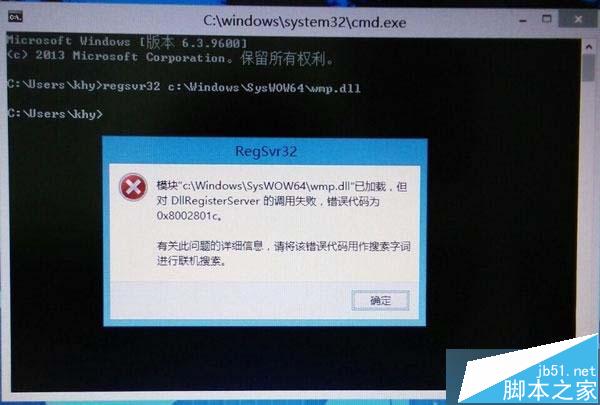
    
    WMP 錯誤畫面
  3. 重新註冊 COM 元件:
    管理員 CMD:
    regsvr32 C:\Windows\SysWOW64\wmp.dll
    regsvr32 C:\Windows\System32\wmp.dll
    
    成功會彈出「DllRegisterServer in ... succeeded」。
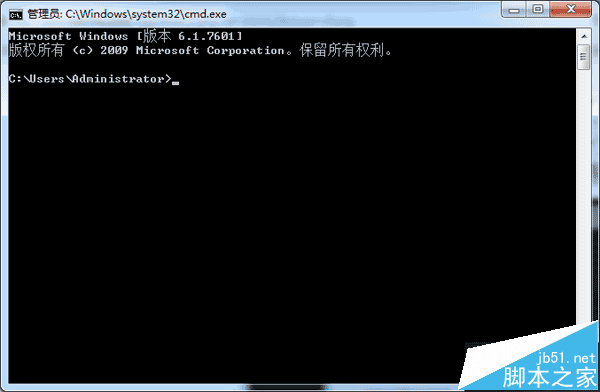
    regsvr32 成功
  4. 重開機驗證:開啟 WMP,應正常啟動、播放音視訊。

進階:Windows Update 修復 (非離線)

設定 → 更新與安全性 → Windows Update → 檢查更新 → 安裝所有可用更新 (含媒體功能套件更新) → 重開機。Windows Update 會自動替換損壞的系統檔案 (含 wmp.dll)。

若修復無效,替代方案

  • 安裝 MPC-BE / MPC-HC / VLC / PotPlayer / IINA 等現代播放器,內建解碼器、支援格式更全、硬解更強、介面現代化。
  • 啟用 Windows 功能 → 媒體功能 → Windows Media Player 關閉再開啟 (觸發元件修復)。

適用於其他 DLL 遺失/損壞

同邏輯適用:取得原版同架構 DLL → 取得擁有權覆蓋 → regsvr32 註冊 (若為 COM/ActiveX) → 重開機。常見:msvcrxxx.dll (VC++)、d3dx9_xx.dll (DirectX)、openal32.dll (OpenAL)。

Copyright © Windows教程網 All Rights Reserved