Win10 安裝 Office 2010 後,每次開啟 Word 都會跑「設定精靈」極其煩人。原因是 Office 2010 偵測到登錄檔缺少 NoRereg 值,誤以為為首次執行。透過批次檔寫入註冊表即可永久關閉。
reg add "HKEY_CURRENT_USER\Software\Microsoft\Office\14.0\Word\Options" /v "NoRereg" /t REG_DWORD /d 1 /f
pause
Word2010_Fix.bat (儲存類型:所有檔案,編碼:ANSI)。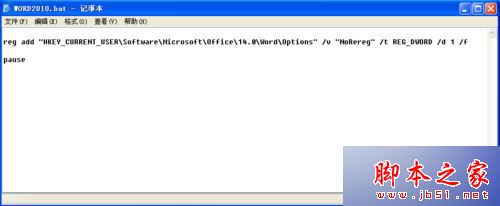
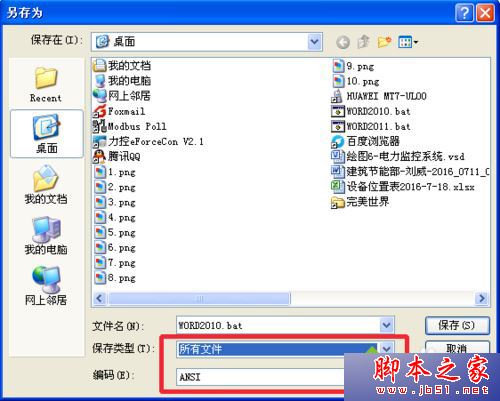

Word2010_Fix.bat → 視窗顯示「作業成功完成」 → 按任意鍵關閉。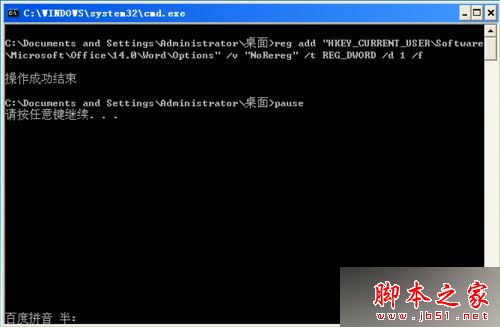
原理:在
HKCU\Software\Microsoft\Office\14.0\Word\Options建立NoRereg= 1 (DWORD),告訴 Word 已完成首次執行設定,不再啟動設定精靈。
同理可修復 Excel、PowerPoint 2010 同樣問題,只需將路徑中的 Word 改為 Excel 或 PowerPoint。
適用於 Win10/11 + Office 2010/2013/2016/2019/365 卷授版。