Windows XP Windows 7 Windows 2003 Windows Vista Windows 綜合教學 Linux 系統教學
Windows 10 Windows 8 Windows 2008 Windows NT Windows Server 電腦軟體教學
您现在的位置: Windows教程網 >> Windows教程 >  >> Windows 綜合教學 >> 關於 Windows

Win10 限制他人電腦使用時間:內建關機指令 + 排程輕鬆管控

編輯:關於 Windows

想管控孩子或他人使用電腦時間,不想裝第三方監控軟體?Win10 內建的 shutdown.exe 搭配「執行」對話框,幾秒鐘就能設定「幾點自動關機」或「幾分鐘後關機」,配合帳號密碼保護,簡單有效。

前置條件

  • 已設定開機密碼(否則他人可重開機繼續使用)。

操作步驟

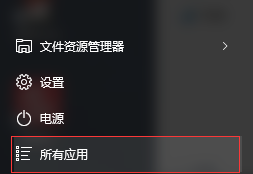
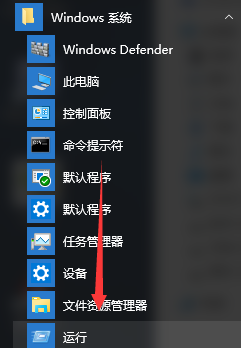
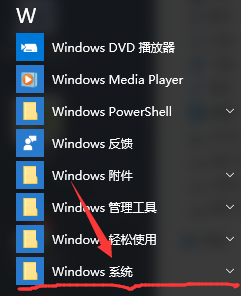
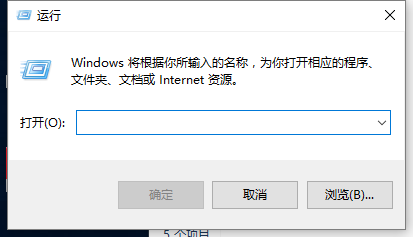
  1. 開始 → 「所有應用程式」→ 「Windows 系統」→ 「執行」(或 Win + R)。
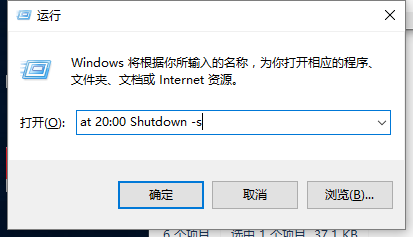
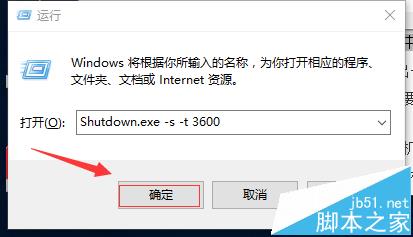
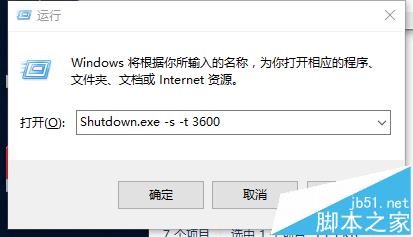
  2. 輸入以下任一指令並按 Enter:
  • 指定時間關機(例:20:00)
    at 20:00 Shutdown -s
  • 倒數關機(例:60 分鐘後)
    Shutdown.exe -s -t 3600
    參數 -t 單位為秒,3600 = 60 分鐘,1800 = 30 分鐘。
開始選單

所有應用程式

Windows 系統資料夾

執行視窗

執行視窗開啟

指定時間指令

倒數指令

確定按鈕

取消排程

若需取消已設定的關機:Win + R → 輸入 shutdown.exe -a → Enter。

進階建議:若需每日固定時段管控,建議搭配「工作排程器」建立每日觸發的關機/開機任務,或使用家長監護功能(Microsoft 家庭群組)獲得更完整的使用時間報表與遠端管理。

此法適用 Win7/8/10/11,無需安裝任何軟體。

Copyright © Windows教程網 All Rights Reserved