Windows XP Windows 7 Windows 2003 Windows Vista Windows 綜合教學 Linux 系統教學
Windows 10 Windows 8 Windows 2008 Windows NT Windows Server 電腦軟體教學
您现在的位置: Windows教程網 >> Windows教程 >  >> Windows 綜合教學 >> 關於 Windows

Win10 安裝 NVIDIA 顯卡驅動提示「GeForce Experience 遇到錯誤必須關閉」?防火牆阻擋,加入允許清單解決

編輯:關於 Windows

Windows 10 安裝 NVIDIA 顯卡驅動後,啟動 GeForce Experience (GFE) 跳出「遇到錯誤且必須關閉」。主因是 Windows Defender 防火牆阻擋 GFE 網路通訊(檢查更新、登入、遊戲優化需聯網)。將 GFE 加入防火牆允許清單即可。

解決步驟

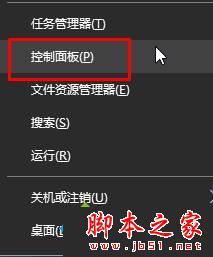
  1. Win+X → 「控制台」。
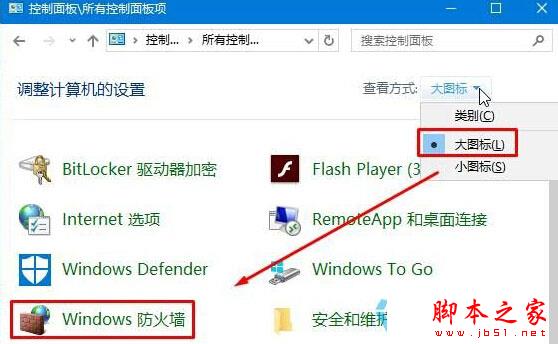
  2. 檢視方式「大圖示」→ 「Windows Defender 防火牆」。
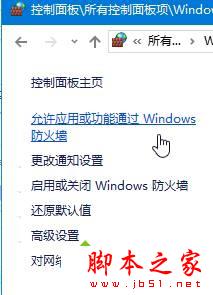
  3. 左側「允許應用程式或功能通過 Windows Defender 防火牆」。
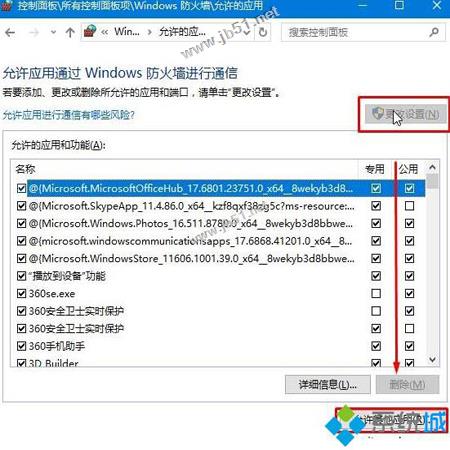
  4. 點「變更設定」→ 「允許其他應用程式」。
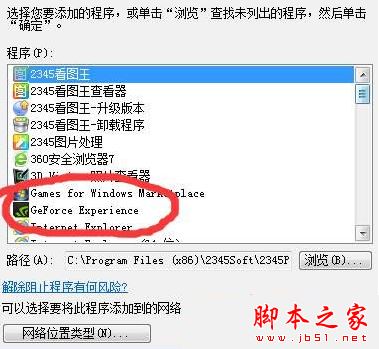
  5. 瀏覽選擇 GeForce Experience 執行檔 (通常在 C:\Program Files\NVIDIA Corporation\NVIDIA GeForce Experience\NVIDIA GeForce Experience.exe) → 「新增」。
  6. 確定儲存,重新開機,GFE 即可正常啟動。

控制台防火牆

防火牆允許應用

變更設定

允許其他應用

選擇GFE執行檔

延伸閱讀

補充

  • 若使用第三方防火牆,請在該軟體中添加 GFE 允許規則。
  • GFE 需聯網才能提供驅動自動更新、遊戲最佳化設定、ShadowPlay 錄影等功能。

防火牆阻擋合法應用聯網是常見誤判,加入允許清單屬標準處理流程,不降低系統安全性。

Copyright © Windows教程網 All Rights Reserved