Windows XP Windows 7 Windows 2003 Windows Vista Windows 綜合教學 Linux 系統教學
Windows 10 Windows 8 Windows 2008 Windows NT Windows Server 電腦軟體教學
您现在的位置: Windows教程網 >> Windows教程 >  >> Windows 綜合教學 >> 關於 Windows

Win7 USB 隨身碟中毒資料夾被隱藏?attrib 指令一鍵恢復顯示 (附批次檔製作教學)

編輯:關於 Windows

USB 隨身碟中毒後資料夾被病毒設為「系統/隱藏/唯讀」屬性導致消失,格式化會連資料一起丟失。用 attrib -s -h -r /s /d 批次指令即可遞歸恢復所有資料夾屬性,資料完整保留。

製作恢復批次檔

  1. 確保操作電腦無毒 (先掃毒)。
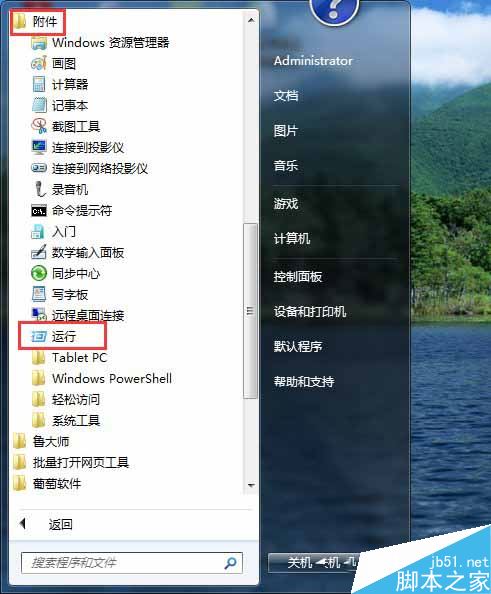
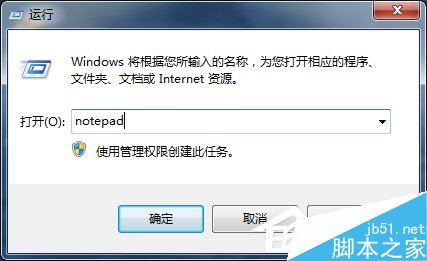
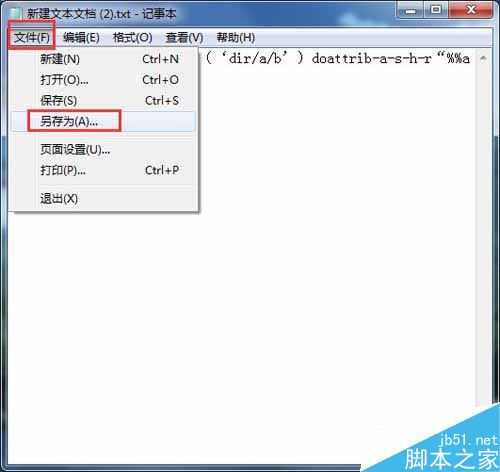
  2. Win + R → notepad 開啟記事本。
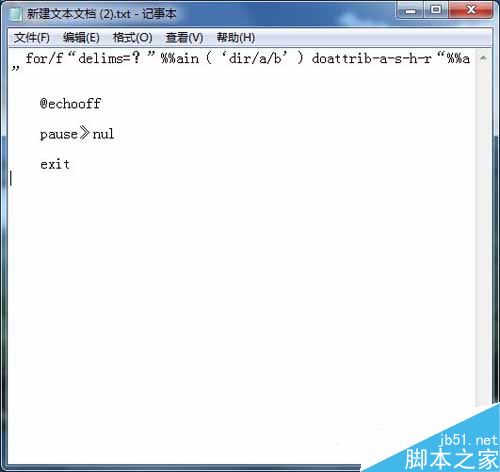
  3. 貼上以下程式碼 (需精確換行):
for /f "delims=?" %%a in ('dir /a /b') do attrib -a -s -h -r "%%a"
@echo off
pause >nul
exit
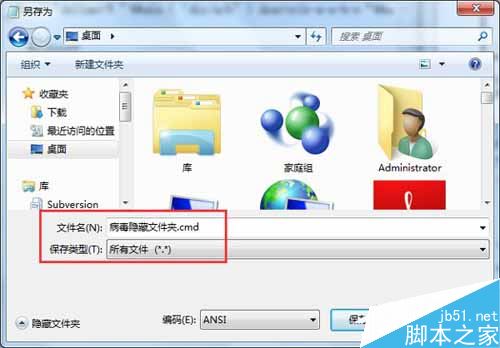
  1. 另存為桌面 病毒隱藏資料夾.cmd (類型選所有檔案)。
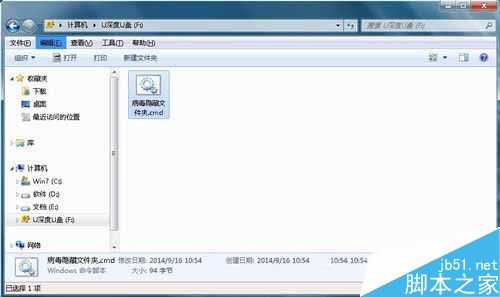
  2. 複製該 .cmd 到 USB 隨身碟根目錄,雙擊執行。
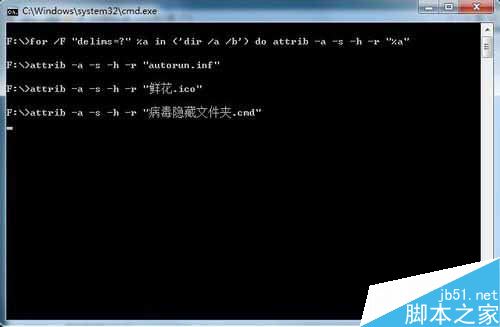
  3. CMD 視窗跑完後,原本隱藏的資料夾全部恢復顯示。

指令解析

  • for /f "delims=?" %%a in ('dir /a /b'):列出所有檔案/資料夾 (含隱藏/系統) 的純名稱。
  • attrib -a -s -h -r "%%a":移除封存、系統、隱藏、唯讀四個屬性。
  • /s /d (隱含在 for 迴圈遞歸中) 處理子目錄。

後續建議

  • 資料恢復後立即備份至電腦/雲端。
  • 完整掃毒 USB 隨身碟 (建議用多引擎線上掃毒如 VirusTotal)。
  • 若病毒建立了 autorun.inf,同步刪除。
  • 企業環境建議啟用群組原則「禁止自動執行」防止 USB 病毒傳播。
Copyright © Windows教程網 All Rights Reserved