Windows XP Windows 7 Windows 2003 Windows Vista Windows 綜合教學 Linux 系統教學
Windows 10 Windows 8 Windows 2008 Windows NT Windows Server 電腦軟體教學
您现在的位置: Windows教程網 >> Windows教程 >  >> Windows 綜合教學 >> 關於 Windows

Win10 個人化設定最小化後無法彈出?PowerShell 重註冊系統應用修復

編輯:關於 Windows

Win10 開啟「個人化」→「色彩」最小化到工作列,再用「照片」應用設定桌布時,個人化視窗變成假死無法彈出。此為系統應用註冊異常,透過 PowerShell 以管理員身分重註冊 WindowsStore 與系統應用套件即可修復。
個人化視窗假死

修復步驟

  1. 開啟工作管理器(Ctrl + Shift + Esc)。
  2. 點選 檔案 → 執行新工作。
  3. 勾選 以系統管理員身分建立這個工作。
  4. 輸入 PowerShell 並按 Enter。
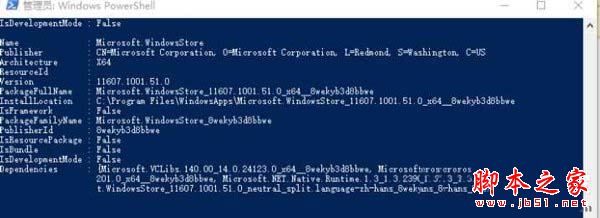
  5. 在 PowerShell 依序輸入以下兩條指令(第二條需按 Enter 執行):
$manifest = (Get-AppxPackage Microsoft.WindowsStore).InstallLocation + '\AppxManifest.xml'
Add-AppxPackage -DisableDevelopmentMode -Register $manifest

Get-AppxPackage -AllUsers | Where-Object {$_.InstallLocation -like "*SystemApps*"} | ForEach {Add-AppxPackage -DisableDevelopmentMode -Register "$($_.InstallLocation)\AppxManifest.xml"}
  1. 完成後關閉 PowerShell,重新啟動電腦即可。

PowerShell 執行畫面

相關工具

  • PowerShell 2.0 (Win2003 中文版) 下載

此法同樣適用於其他系統內建應用(如地圖、郵件等)異常,只需替換套件名稱即可。

Copyright © Windows教程網 All Rights Reserved