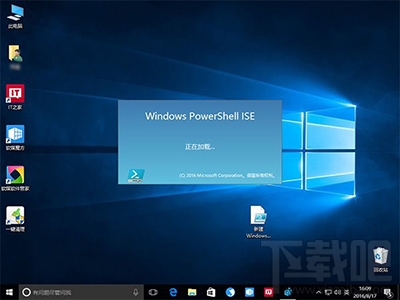
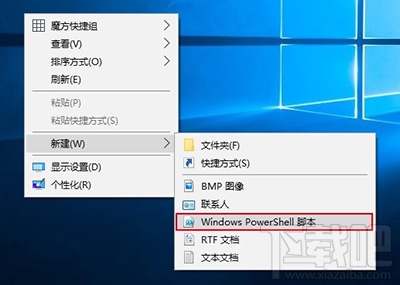
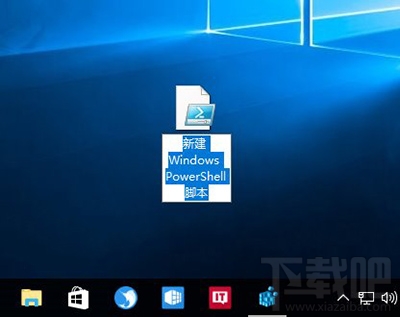
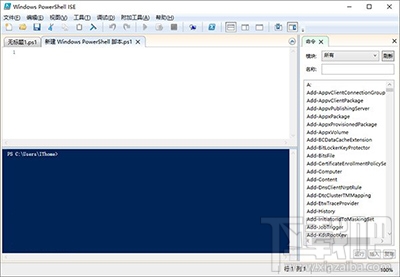
PowerShell 是 Win10 進階操作的利器,但預設右鍵「新增」選單沒有 PowerShell 腳本(.ps1)選項。透過註冊表新增 ShellNew 項目,即可在右鍵選單直接建立空的 .ps1 檔案,大幅提升腳本開發效率。
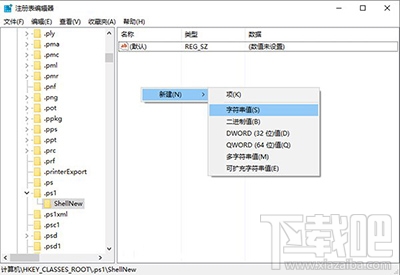
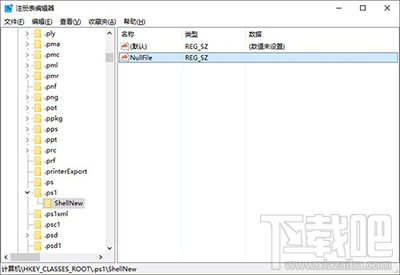
regedit 開啟登錄編輯器。HKEY_CLASSES_ROOT\.ps1.ps1 下右鍵新增「項」,命名為 ShellNew。ShellNew 下右鍵新增「字串值」,命名為 NullFile,數值資料留空(代表建立空檔案)。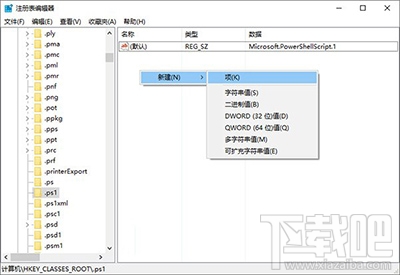
Win7 審核策略監控 QQ 使用紀錄:啟用策略、設定審核對象、查看事件日誌完整教學
Win10 更新套件未經同意自動移除 CPU-Z、Speccy、AMD Catalyst 等軟體:微軟稱相容性風險,用戶質疑控制權被架空
Windows 10 永久停用驅動程式強制簽章驗證:一行 BCDEdit 指令即可完成
Win10 Redstone 14279 已知問題與解決方案:QQ 崩潰、Surface 凍結、休眠藍屏、卡巴斯基衝突
Win10 封鎖指定網站:修改 hosts 檔案將域名導向 127.0.0.1 徹底阻擋
Win10 升級後 Windows Defender 無法啟動:清除 MSE 殘留、恢復 Defender 服務雙步驟修復